
Software
Microsoft Teams channels can transform teamwork—but only if used effectively. These 10 best practices help you organize workflows, reduce clutter, and boost productivity in every project, from small teams to enterprise collaboration.
Standardize Channel Naming Conventions
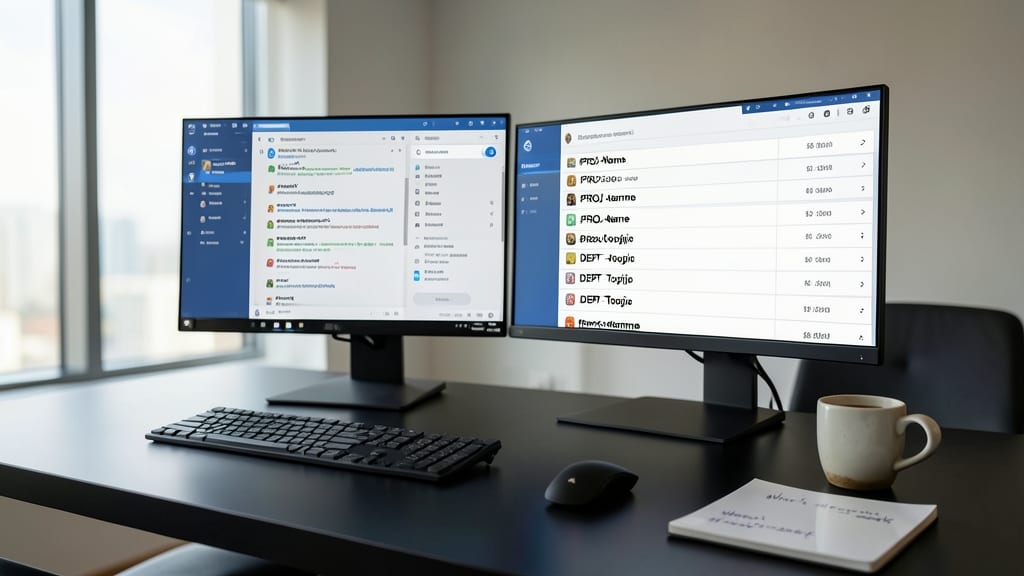
Struggling to find the right Microsoft Teams channel when you need it most? A clear naming convention can cut search time by 50%—no more guessing whether #ProjectX or #Marketing-Q3 is the right spot. The key is prefix consistency: use patterns like #PROJ-Name for projects or #DEPT-Topic for departments, so channels like #MKT-Q3-Launch or #HR-Onboarding instantly reveal their purpose.
Start with a two-part structure: a short prefix (e.g., #FIN, #DEV) followed by a descriptive name (e.g., #FIN-Q2-Budget). Avoid vague terms like #General or #Random—instead, use action-oriented labels like #SUP-Ticket-Tracking. Pro tip: Add emojis sparingly (e.g., 📊 for data channels) to visually categorize at a glance. Microsoft Teams’ built-in search also works better with standardized names, so your team spends less time hunting and more time collaborating.
This system shines for cross-functional teams (like marketing + dev) or remote teams where context matters most. A well-named channel ensures everyone—from new hires to contractors—knows exactly where to go. 💡
Enable Channel Moderation for Private Teams

Not every team discussion belongs in the open—especially when handling confidential projects like HR policies, financial reviews, or R&D prototypes. Channel moderation in Microsoft Teams lets you lock down private channels, ensuring only approved members can join or contribute, while keeping sensitive conversations truly secure.
Start by converting a standard channel to private (via channel settings), then enable member approvals to manually vet new participants. You can also restrict external access entirely, blocking guests from joining—critical for compliance-heavy industries. For extra control, use Teams admin policies to enforce multi-factor authentication for private channels, adding another security layer. This setup ensures discussions about salary adjustments, patent filings, or client strategies stay where they belong: behind closed digital doors.
This is a must for HR teams managing sensitive employee data, finance departments reviewing budgets, or R&D groups brainstorming proprietary ideas. With moderation enabled, you’ll sleep easier knowing your team’s most sensitive work stays protected—no accidental leaks or unauthorized access. 💪
Use Tab Organization for Key Resources
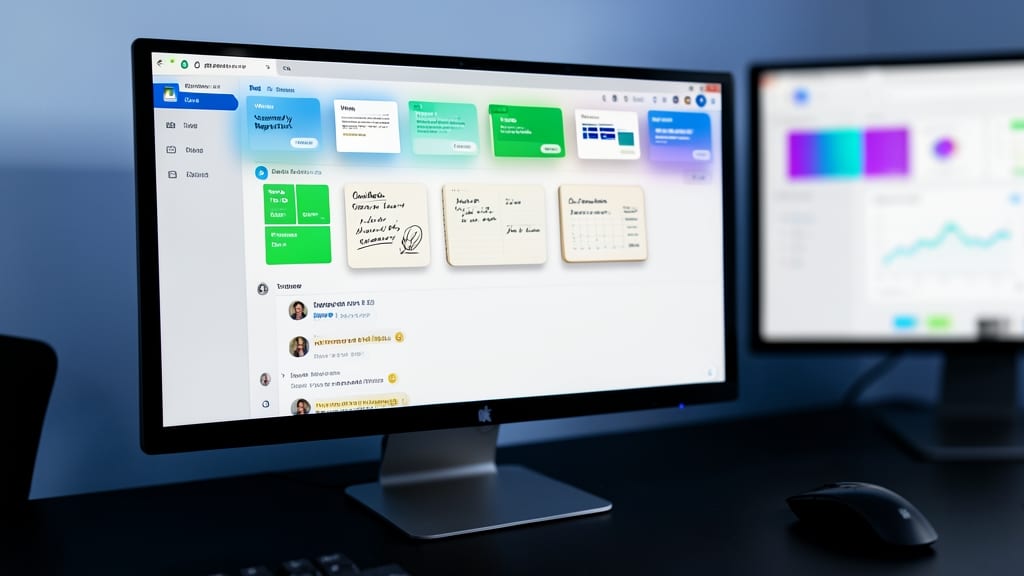
Tired of digging through endless file shares or switching between apps mid-conversation? Pinned tabs in Microsoft Teams turn chaos into a single, organized hub—no more tab overload or lost links.
Pin up to 10 tabs per channel (docs, Trello boards, OneNote pages, or even Power BI dashboards) so they load instantly. The SharePoint integration keeps files version-controlled, while third-party apps (like Asana or GitHub) embed directly—no copy-pasting URLs. Teams using this trick report cutting file-search time by 60% because everything stays visible at a glance.
Perfect for marketing teams juggling creative assets, dev squads tracking sprints, or customer support managing FAQs—anyone who spends more time switching tools than collaborating. 💻
Implement a 'One Conversation per Topic' Rule
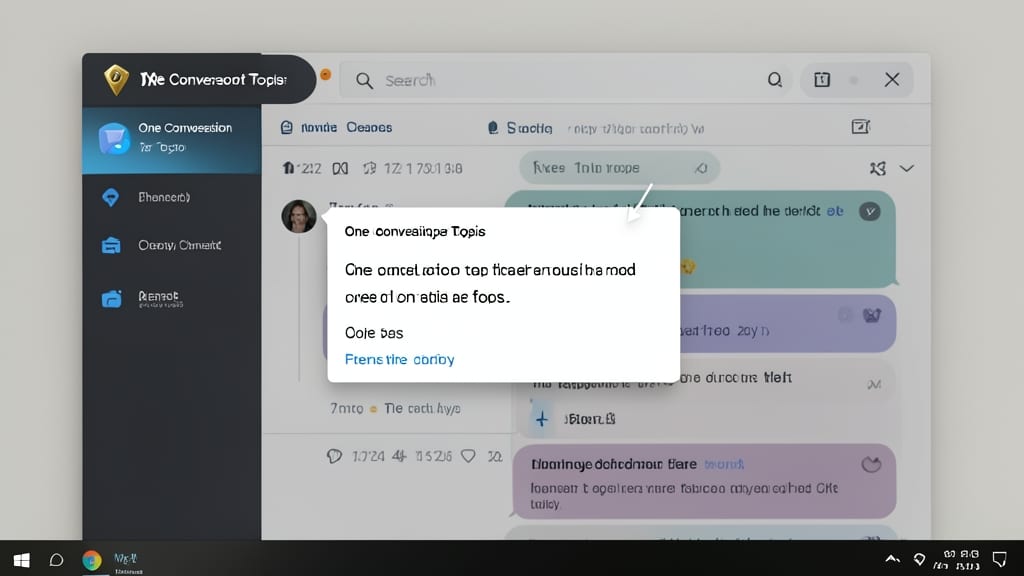
Ever wasted 10 minutes scrolling through a Microsoft Teams channel where the same topic got split into three different threads? The "One Conversation per Topic" rule solves this by forcing discussions into a single, organized thread—no more fragmented debates or lost replies.
Start by pinning a template message at the top of your channel (e.g., "All feedback on [Project X] goes in this thread—reply below!"). Use clear subject lines like "[Design] Wireframe Feedback" to keep context intact. For cross-functional teams, this rule cuts down on @mentions clutter and ensures stakeholders see updates in one place. Tools like Power Automate can even auto-sort replies by topic if your team uses labels.
This works best for product teams, marketing campaigns, or IT support channels where multiple roles (designers, devs, PMs) contribute. Try it in your next brainstorming session—you’ll notice fewer interruptions and more focused collaboration. ✨
Set Up Channel Descriptions with Ownership Info
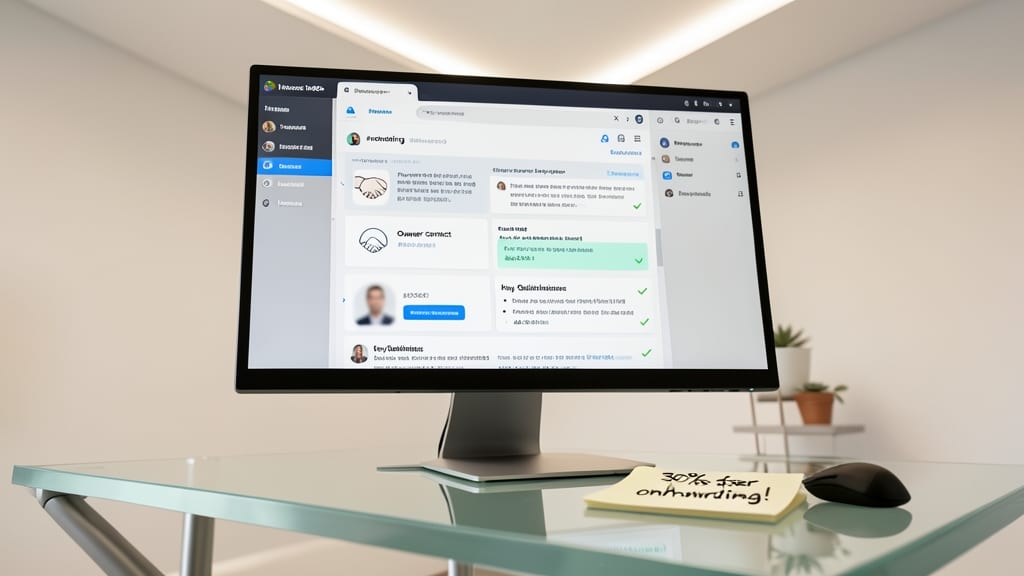
New hires or contractors shouldn’t waste time guessing where to start—clear channel descriptions act as a built-in guidebook. By including the channel’s purpose, owner contact, and key guidelines, you eliminate confusion and speed up ramp-up time by up to 30% for new team members.
Start with a one-line purpose (e.g., "#Marketing-Campaign: Weekly brainstorming for Q3 launch"), then add the owner’s name and email for accountability. Include 3-5 bullet points for guidelines, like "Post updates here by EOD Friday" or "Use @mentions for urgent requests." Microsoft Teams’ built-in description editor makes this a 5-minute setup—no extra tools needed.
This works best for project-based teams (like marketing or R&D) where roles shift frequently, or for remote teams where context might get lost. A well-documented channel ensures everyone stays aligned—no more "Where do we discuss this?" messages. ✨
Archive Inactive Channels Automatically
Seasonal projects or one-off initiatives can leave behind a trail of inactive Microsoft Teams channels—cluttering your workspace and wasting storage. The solution? Automated archiving to clean up channels that haven’t seen activity in 6–12 months, keeping your team’s focus sharp and your admin workload light.
Microsoft Teams allows admins to set auto-archive rules via the Teams admin center, where you can define inactivity thresholds (e.g., 30, 90, or 180 days) before channels are tucked away neatly. Archived channels remain accessible but are hidden from the main list, reducing visual noise. For teams with project-based workflows (like marketing campaigns or event planning), this ensures old channels don’t distract from active work—while still being recoverable if needed.
This is a game-changer for teams juggling multiple short-term projects, where manual cleanup would be a constant chore. Set it up once, and let Teams handle the rest—your collaboration space stays tidy without extra effort. ✨
Leverage Channel Notifications for Critical Updates
Drowning in notifications? Microsoft Teams lets you filter alerts so you only see what matters—like @mentions for deadlines or urgent project updates—instead of every post. This cuts through the noise for teams juggling multiple priorities.
Start by navigating to Team settings > Notifications and toggling off "All new content" for channels where you don’t need real-time updates. Instead, enable "@mentions" and "Key updates" to prioritize critical messages. For even tighter control, use Power Automate to trigger alerts only when specific keywords (like "DEADLINE" or "APPROVAL NEEDED") appear. ⚡
Perfect for product managers, agency teams, or anyone managing fast-paced projects where context-switching is costly. Focus on what moves the needle forward! 💻
Create a #General Channel for Team Announcements
Hybrid and remote teams often drown in scattered announcements buried in project channels—until you create a dedicated #General channel. This isn’t just another workspace; it’s your team’s digital town square for company-wide updates, from holiday schedules to policy changes, keeping everyone aligned without overloading specialized teams.
Start by naming it #General (or #Company-Announcements for clarity) and pin key posts like meeting agendas or IT updates. Use the “Announcements” tab to highlight urgent messages, and set the channel as public by default to ensure visibility. For extra polish, enable “Post as Announcement” (via channel settings) to distinguish critical updates from casual chats.
This setup is ideal for distributed teams where face-to-face updates are rare. It ensures no one misses critical news while keeping project channels focused. ✨
Use Channel Templates for Repeated Projects
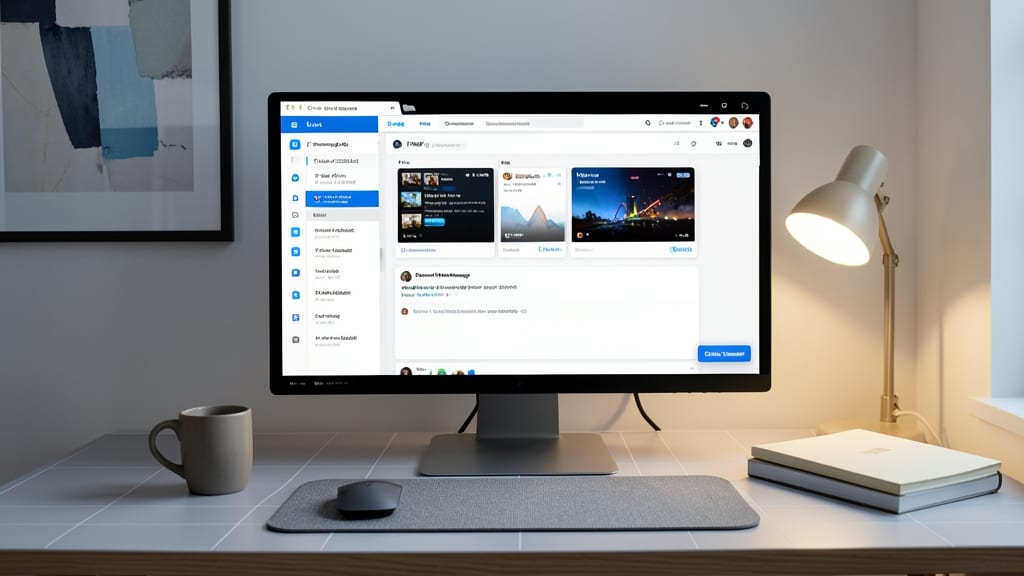
Tired of recreating the wheel every time you kick off a new client project or IT support ticket? Microsoft Teams channel templates let you clone pre-built structures—complete with tabs, pinned apps, and even default messages—in seconds. No more starting from scratch for recurring workflows like onboarding, bug tracking, or vendor coordination.
To get started, create your template channel with all the essentials: a #contracts tab linked to SharePoint, a #tasks tab with Planner integration, and a pinned welcome message with key deadlines. Once set up, save it as a template in the channel settings, then reuse it across teams with one click. Teams with standardized processes (like agencies or IT help desks) can cut setup time by 70%—freeing up hours for actual work instead of configuration.
This is a game-changer for teams drowning in repetitive setup. Perfect for agencies managing client projects or IT teams handling device rollouts. ✨
Schedule Regular Channel Cleanup Sessions
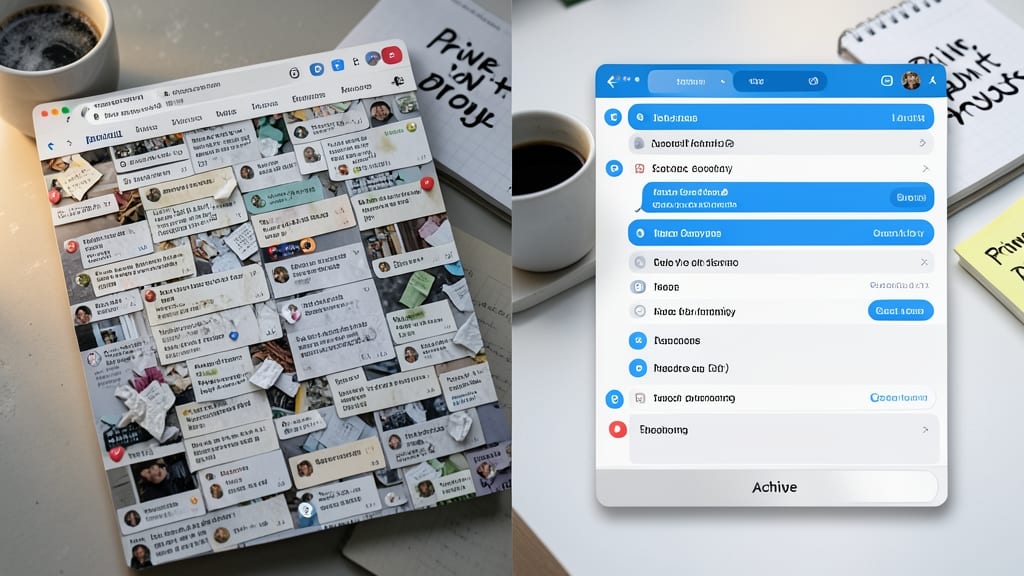
Ever feel like your Teams channels are more like digital landfills than organized workspaces? A 15-minute monthly cleanup can transform chaos into clarity—without disrupting workflows. This isn’t about deleting everything; it’s about pruning the dead weight so your team stays focused on what matters.
Start by removing outdated files (e.g., drafts, old meeting notes) that clutter tabs and searches. Next, rename vague channels (like “Project X Stuff”) to something actionable (e.g., “#MKT-Q3-Campaign-Budget”). Finally, update descriptions to reflect current goals or ownership—this helps new hires and contractors navigate instantly. Pro tip: Use Teams’ “Manage Channel” dropdown to bulk-delete files or archive entire threads in one click.
This habit is a game-changer for fast-growing teams or departments with seasonal projects (like marketing or IT support). Set a recurring calendar reminder, and watch your collaboration efficiency climb. ✨