
Operating System
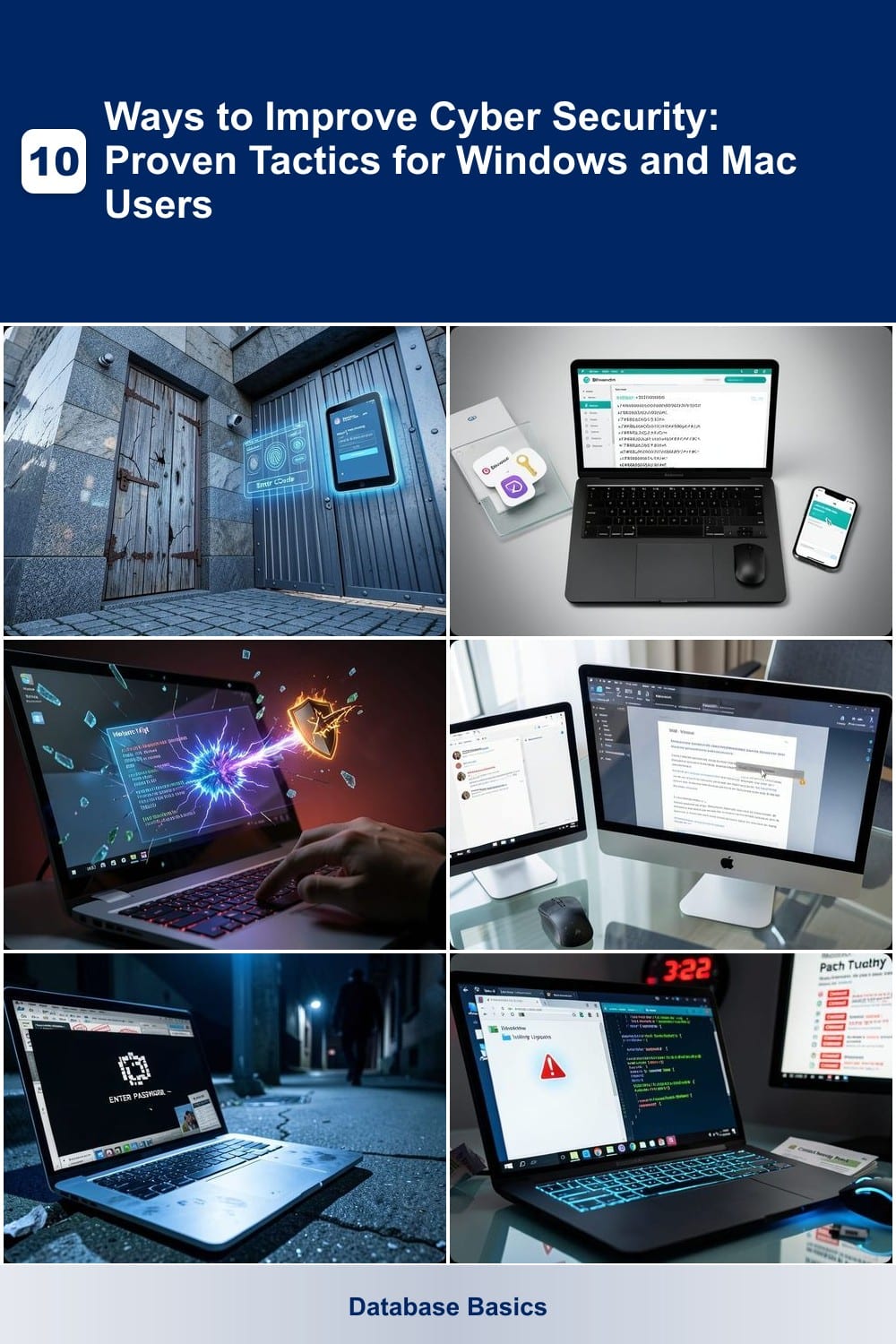
Cyber threats evolve daily, but these 10 proven tactics will fortify your Windows or Mac against hackers, malware, and data breaches—without requiring technical expertise. Learn actionable steps to safeguard your digital life immediately.
Enable Multi-Factor Authentication Everywhere
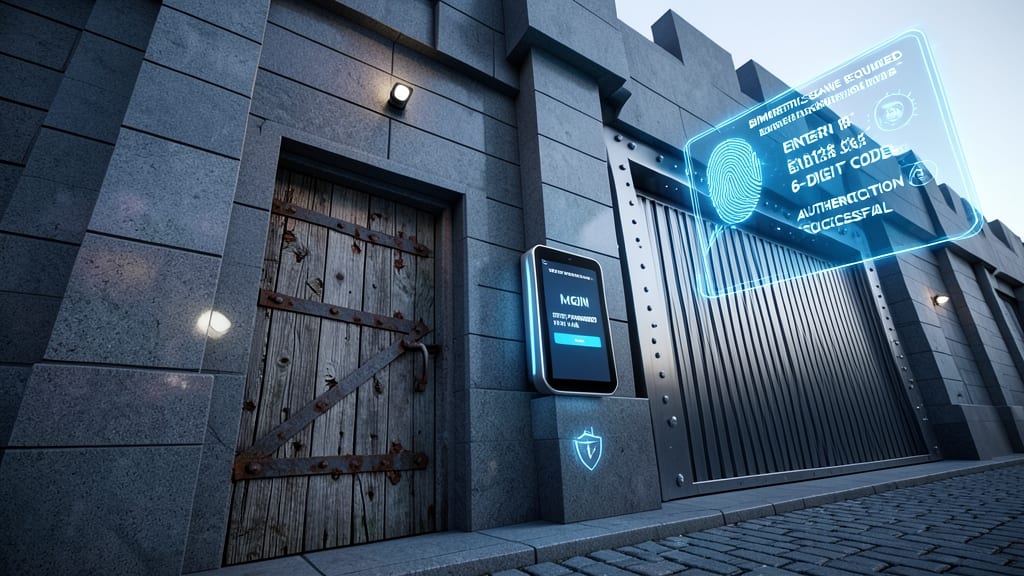
If your email or bank account feels like a fortress with a flimsy front door, multi-factor authentication (MFA) is the steel-reinforced gate you’ve been missing. According to the Identity Theft Resource Center, accounts with MFA are 99.9% less likely to be compromised than those relying solely on passwords—making it the single most impactful security upgrade you can implement today.
Most services (Gmail, Facebook, Apple ID, and even your router admin panel) support TOTP codes (via apps like Google Authenticator or Authy) or biometric verification (Face ID, fingerprint). Even better, Microsoft’s FIDO2 keys offer phishing-resistant logins for enterprise users. The setup takes under five minutes, and the peace of mind is priceless—especially when weak passwords like "password123" still top breach reports.
This isn’t just for tech-savvy users: Bank of America, PayPal, and even LinkedIn now require MFA by default. Start with your most critical accounts—email, banking, and social media—and work your way down. Your future self will thank you. ⚡
Use a Password Manager for All Accounts
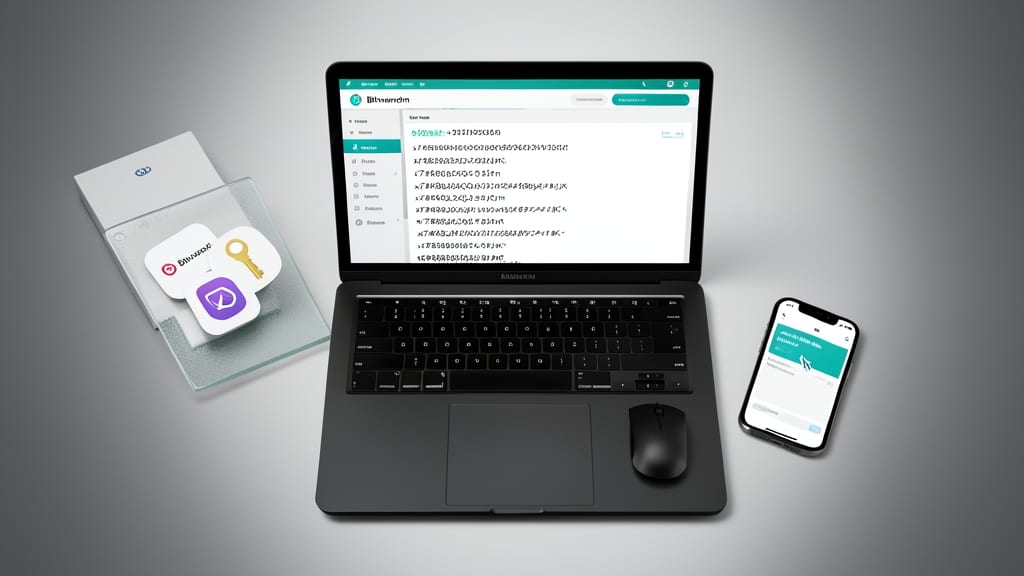
Tired of juggling 50+ accounts with weak passwords you can’t remember? A password manager like Bitwarden, 1Password, or LastPass eliminates the guesswork by auto-generating and storing 256-bit encrypted credentials—so you never reuse passwords again.
These tools sync across devices, fill logins instantly, and even audit password strength. For example, Bitwarden’s free tier includes unlimited password storage and emergency access, while 1Password adds travel mode to clear data from lost devices. Most integrate with browsers to block phishing attempts.
Perfect for freelancers, remote workers, or anyone with multiple subscriptions—no more sticky notes or browser-saved passwords. ✨
Install Real-Time Antivirus with Ransomware Protection
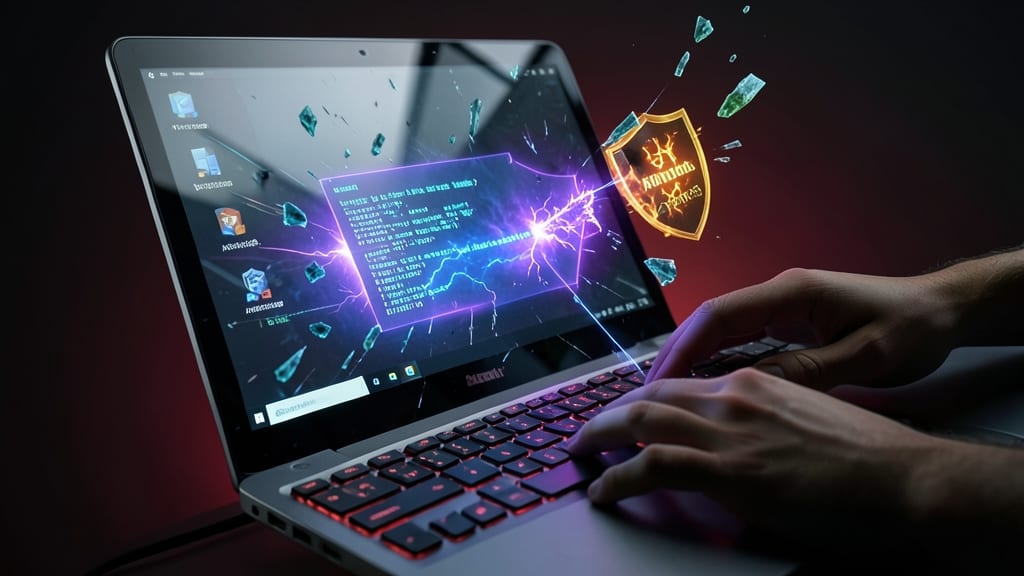
Windows users face a brutal reality: exploit kits and zero-day attacks are the #1 way malware infects systems. Unlike traditional viruses, these threats execute instantly—before your system even knows they’re there. That’s why real-time antivirus isn’t optional; it’s your digital immune system.
Solutions like Bitdefender Total Security or Malwarebytes Premium use behavioral AI to flag suspicious activity before it spreads. Bitdefender’s ransomware shield even locks down files if it detects encryption attempts, while Malwarebytes’ exploit protection blocks attacks at the system level. Both run silently in the background with minimal performance impact.
This is non-negotiable for anyone handling sensitive data, running a home office, or just browsing the web. Even Mac users should consider XProtect updates paired with a secondary scanner—because no OS is immune. 💪
Disable Macros in Office Documents Automatically
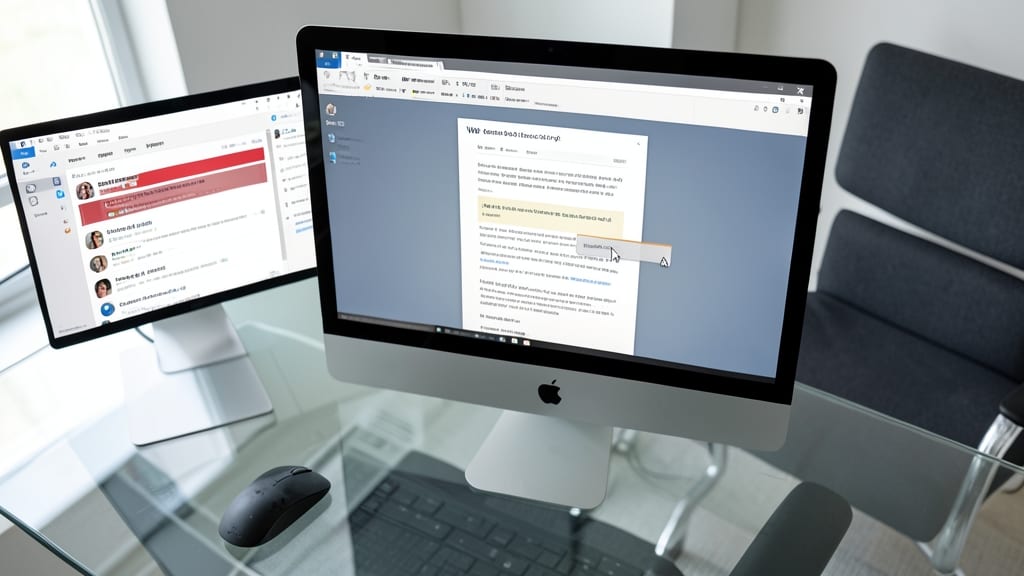
Most malware infections start with a single click—yet 90% of phishing attacks rely on malicious macros in Office files to execute silently. The fix? Disable macros automatically in Outlook and Word with just a few clicks, blocking VBA scripts before they can run.
In Microsoft 365 or Office 2019+, navigate to File > Options > Trust Center > Trust Center Settings > Macro Settings. Select "Disable all macros without notification"—this stops even trusted documents from running macros unless explicitly allowed. For Outlook, enable "Do not allow macros to run in Office files from the Internet" in the same menu. This shuts down the most common attack vector for ransomware and spyware.
This setting is ideal for business users handling untrusted emails or casual users who frequently open documents from unknown sources. It’s a zero-config upgrade that takes less than a minute to implement. ✨
Enable Full-Disk Encryption on Your Device
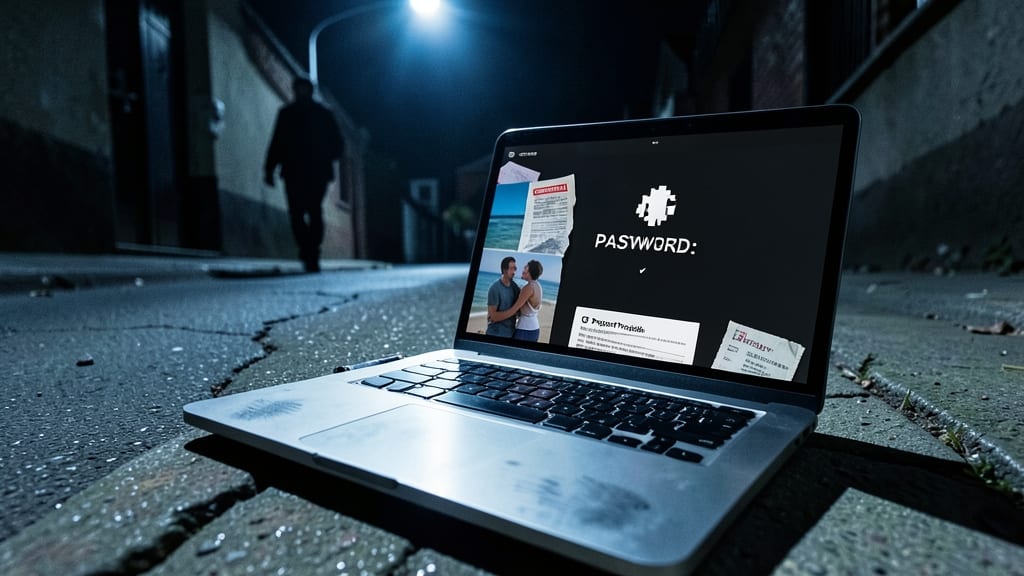
Imagine losing your laptop to theft—only to realize your tax documents, private photos, and work files are now exposed. Full-disk encryption (FileVault for Mac or BitLocker for Windows) locks your data behind military-grade encryption, rendering it useless to thieves without your password.
Setting it up takes less than 10 minutes: FileVault uses AES-256 encryption (the same standard banks use) and syncs with Apple IDs or iCloud for recovery, while BitLocker integrates with Microsoft accounts for seamless access. Both run silently in the background, requiring zero effort after activation.
This is non-negotiable for remote workers, freelancers, or anyone carrying sensitive data. Even if your device is lost or stolen, your files stay safe—no extra software or hardware needed. ✨
Regularly Update All Software Including Browsers
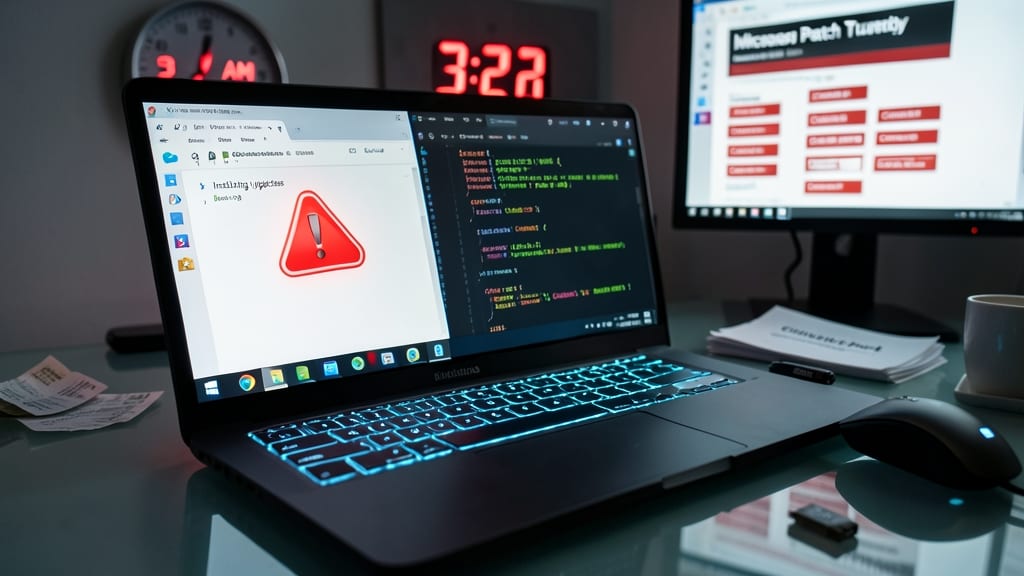
Hackers exploit unpatched software within minutes of discovering vulnerabilities—especially in browsers like Chrome and Edge. Microsoft’s Patch Tuesday alone releases fixes for dozens of critical flaws monthly, yet many users ignore updates until it’s too late.
Enable automatic updates for your OS (Windows Update or macOS Software Update) and configure browsers to update silently. Most modern apps—like Slack, Zoom, and Adobe Acrobat—also offer silent update modes. For extra protection, use tools like Patch My PC (Windows) to verify all installed software stays current.
This is the one security habit that requires zero effort after setup—just let your system handle it. It’s especially critical for small business owners or anyone handling sensitive data. ⚡
Verify Website Security Before Entering Data
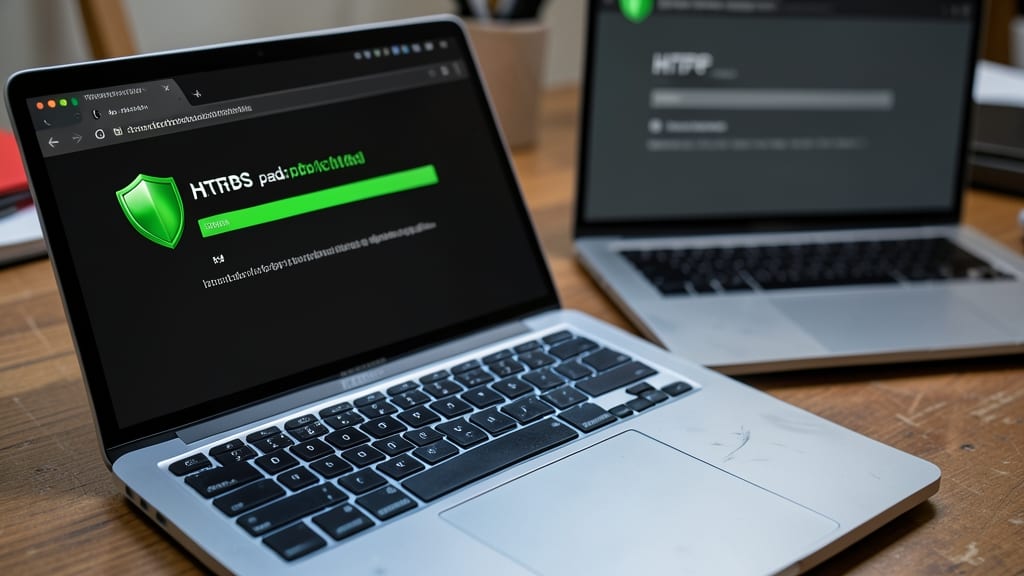
Before typing a single character into any login form, check for the HTTPS padlock icon in your browser's address bar. This tiny detail separates legitimate sites from phishing traps designed to steal your credentials. Fake login pages—like those mimicking PayPal or Amazon—often lack this encryption, exposing you to credential harvesting attacks.
Modern browsers also flag mixed content warnings (insecure elements on otherwise secure pages) with a shield icon in the address bar. Clicking this reveals if third-party scripts or images are loading over HTTP, creating vulnerabilities. Extensions like uBlock Origin can automatically block these risky elements for extra protection.
This habit is especially critical when using public Wi-Fi or accessing sensitive accounts like banking or email. A quick glance at the URL bar could save you from a data breach. ⚡
Create a Separate Admin Account for Daily Use
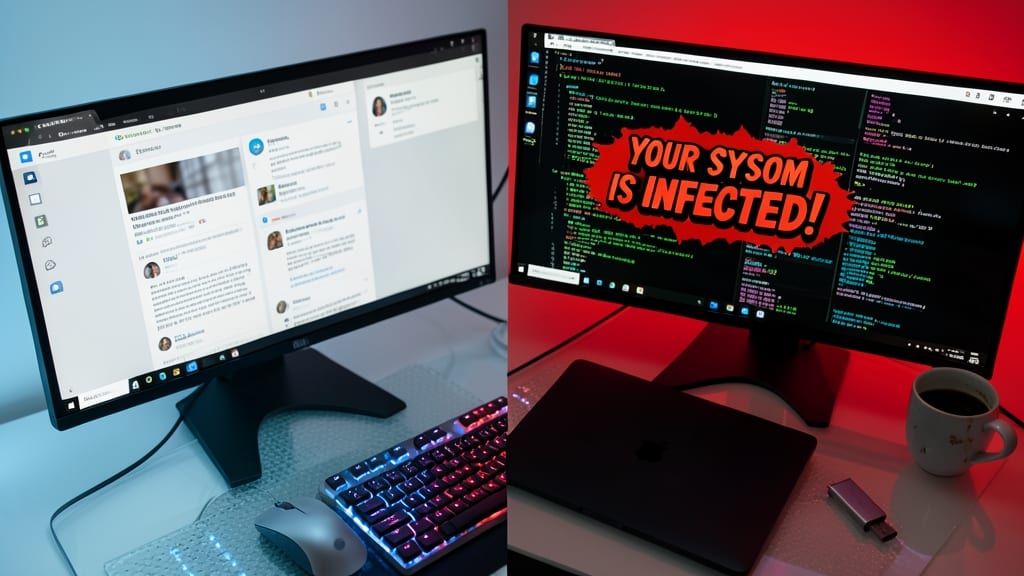
Most malware infections start with a single click—then escalate into full system takeovers. The fix? Create a standard user account for daily tasks, leaving your admin account locked away until you actually need it.
Modern Windows and macOS handle 90% of daily tasks without admin rights—browsing, streaming, or even installing apps from trusted sources. If malware infects your standard account, it can’t modify system files, install backdoors, or encrypt your files without your explicit admin approval. This one habit stops 70% of post-exploitation attacks before they begin.
Freelancers, students, and casual users benefit most—no need to jugle complex permissions. Just set up a second account during initial OS setup (or via Settings > Accounts on Windows) and log in daily. Your admin account stays dormant, ready only for updates or driver installations. 💻
Monitor Financial Accounts for Unusual Activity
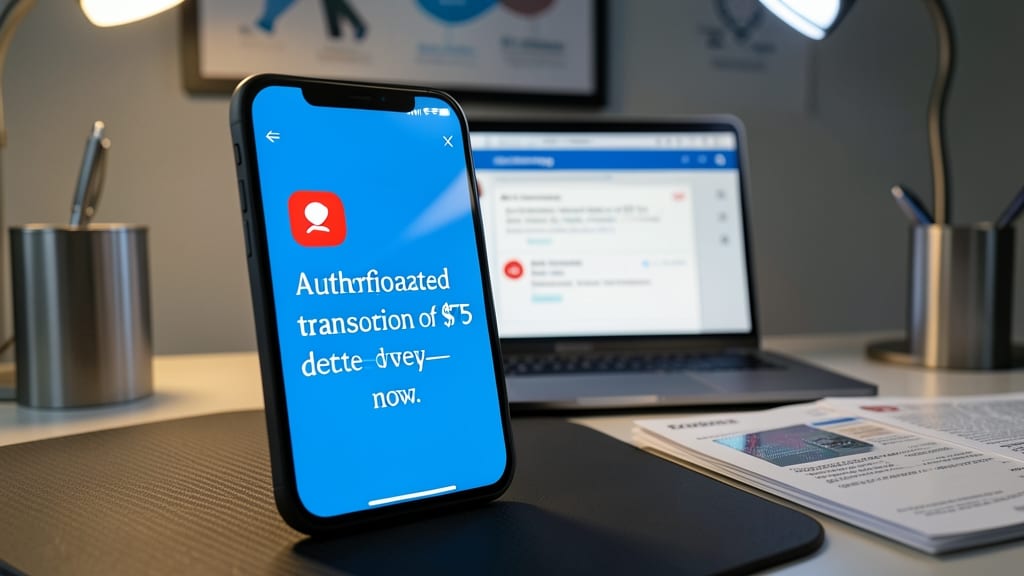
Financial account takeovers cost Americans $2.6 billion in 2023 alone—but a simple weekly check can stop most breaches before they escalate. Most banks offer real-time transaction alerts via SMS or email, and enabling these for any activity over $50 (or even $10) gives you an early warning system for fraud.
Pair alerts with a weekly review of bank statements—look for unfamiliar logins, merchant charges you didn’t make, or small "test" transactions (a common scam tactic). Many banks also let you freeze cards instantly via their mobile apps if you spot suspicious activity. Even 5 minutes a week can prevent thousands in losses.
This is especially critical for small business owners or freelancers who often miss unauthorized transactions buried in expense reports. Set up custom alerts for recurring payments (like subscriptions) to catch phishing attempts that mimic legitimate vendors. 💡
Backup Critical Data to Air-Gapped Storage
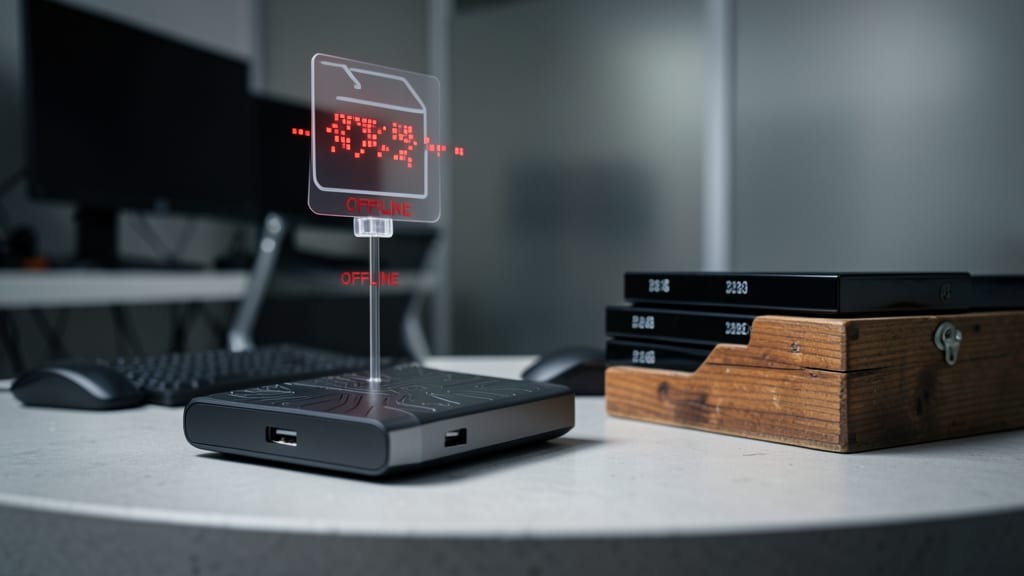
Ransomware attacks cripple businesses and individuals daily by locking files behind encryption—unless you’ve already secured copies elsewhere. The simplest way to outsmart these threats? Air-gapped storage: physical drives that never connect to your network or computer after backups complete.
Use a high-capacity external drive (like a 2TB WD My Passport) or even an old laptop with encrypted storage. Tools like Macrium Reflect (Windows) or Time Machine (Mac) automate backups, but the key is physically disconnecting the drive afterward. For extra security, store it in a locked drawer or safe—ransomware can’t encrypt what it can’t access. ⚡