
Tip & Trick
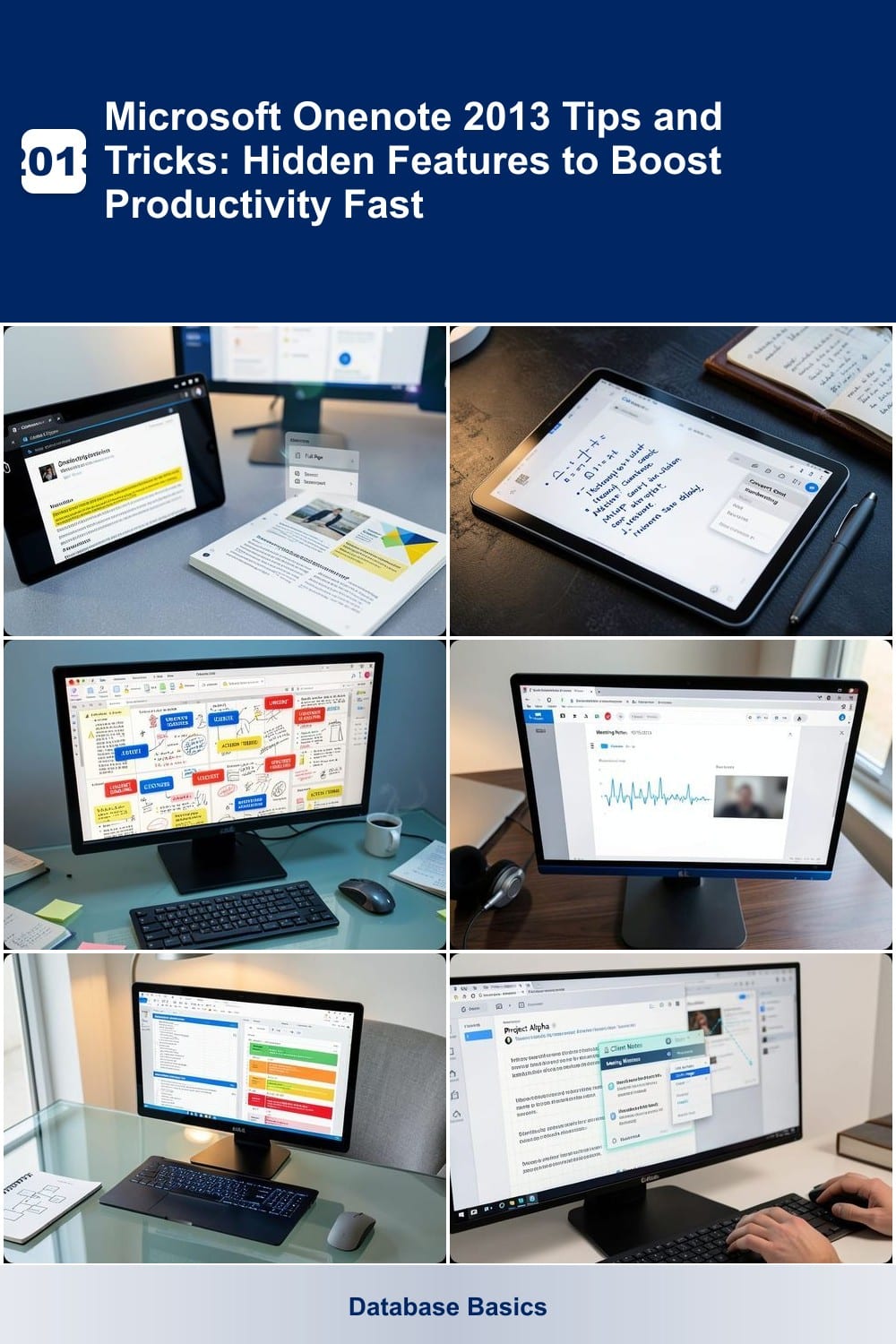
Microsoft OneNote 2013 is a powerhouse for note-taking and organization, but many users miss its most powerful features. These seven hidden tips and tricks will transform how you use OneNote, saving time and boosting productivity in ways you never knew were possible.
Quick Capture with OneNote Clipper Browser Extension
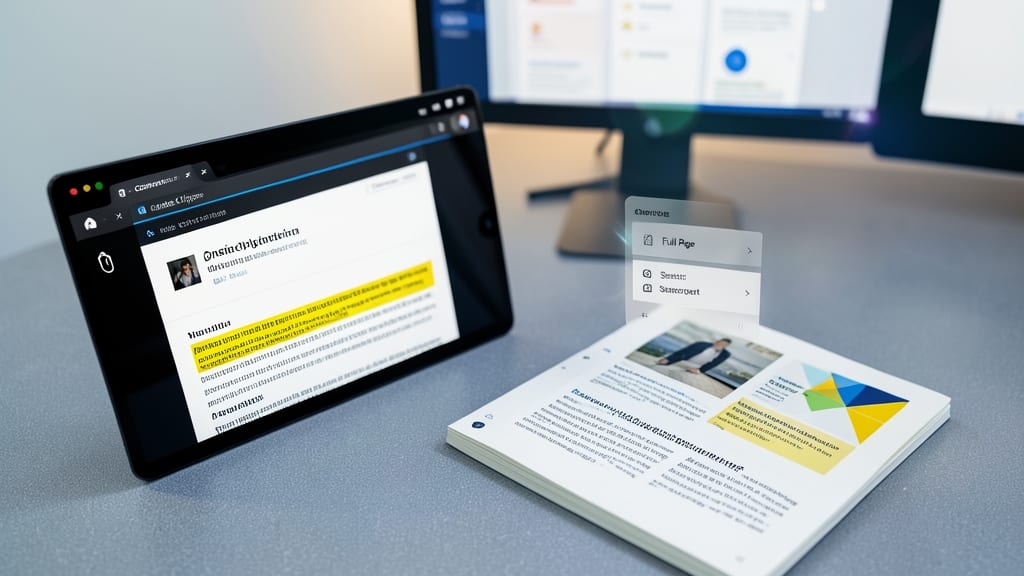
Tired of losing track of important web articles or research snippets? The OneNote Clipper browser extension lets you save entire web pages, images, or selected text directly to OneNote—without ever opening the app. Just install it in Chrome, Firefox, or Edge, then click the Clipper icon to capture content instantly.
You can save full articles, screenshots, or even specific sections with one-click formatting. The extension preserves images, tables, and hyperlinks, so your notes stay visually intact. Best of all, it works across devices—clip on your laptop, and access the content later on your tablet or phone. No more copy-pasting or manual screenshots!
Perfect for researchers, journalists, or content curators, this tool turns browsers into a seamless note-taking powerhouse. Save time and keep your digital library organized—all in seconds. ⚡
Handwriting Conversion to Text with Ink Recognition
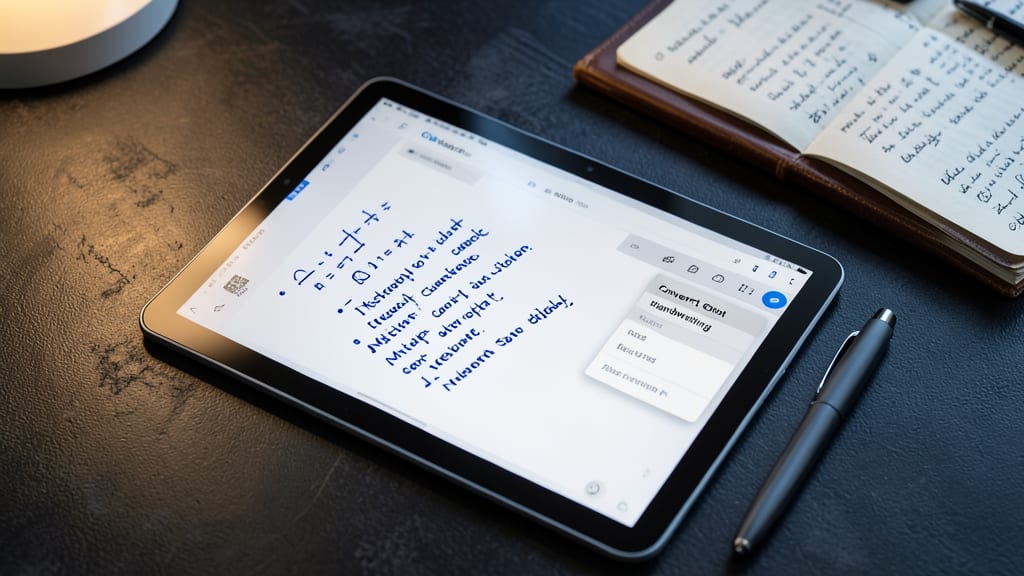
Still clinging to pen and paper for notes? OneNote 2013’s Ink Recognition feature bridges the gap between analog and digital with its handwriting-to-text conversion—no scanning or retyping required. Simply jot down ideas on your tablet or touchscreen, then right-click and select "Convert Handwriting to Text" to transform your scribbles into editable, searchable text.
The magic happens with Microsoft’s built-in OCR (Optical Character Recognition) engine, which handles print, cursive, and even mathematical equations with impressive accuracy. Need to find a specific phrase later? The converted text becomes fully searchable, so you can locate notes by keyword—no more flipping through pages. For students, this means lecture notes become instantly editable, while professionals can turn meeting scribbles into polished documents in seconds.
Ideal for students, meeting attendees, or digital nomads who prefer the tactile feel of handwriting but need the flexibility of digital notes. Say goodbye to lost scribbles and hello to searchable, reusable content—all without lifting a finger. ✨
Tagging and Searching with Custom Tags
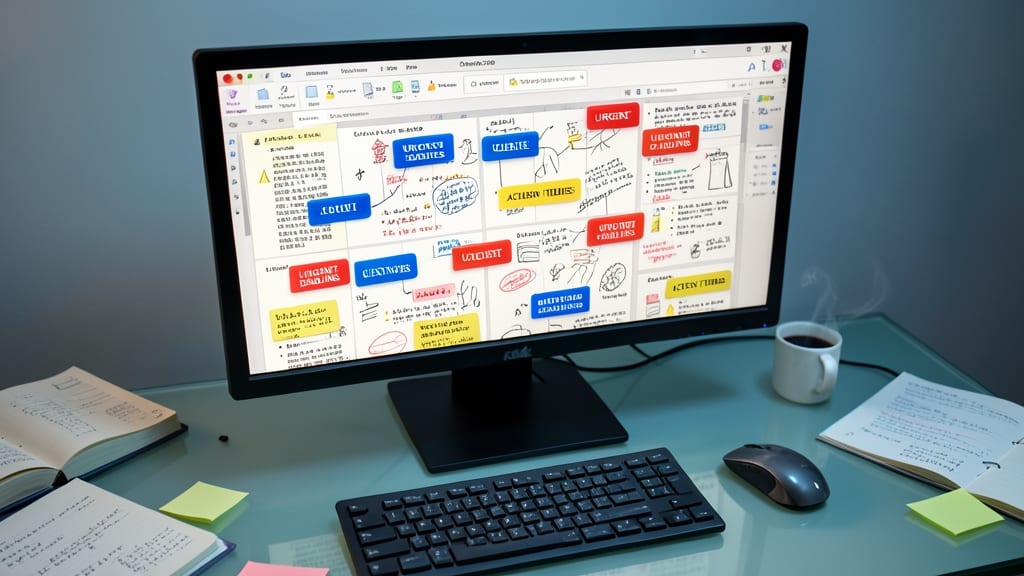
Drowning in a sea of notes? OneNote 2013’s custom tagging system turns chaos into clarity with just a few clicks. Assign color-coded tags (like red for urgent or blue for client notes) to sections, pages, or even individual lines—then search them instantly using the built-in filter.
You can create up to 10 unique tags per notebook, each with a distinct color and name (e.g., "Meeting Notes," "Action Items"). The real magic? Smart search—type a tag name in the search bar, and OneNote pulls up every tagged item, even if buried in a 500-page notebook. Combine tags with keywords for laser-focused results (e.g., "Project X" + "Urgent").
Perfect for project managers juggling deadlines or team leads tracking action items across meetings. No more scrolling endlessly—just tag, search, and reclaim your focus. ⚡
Audio and Video Recording Directly in Notes
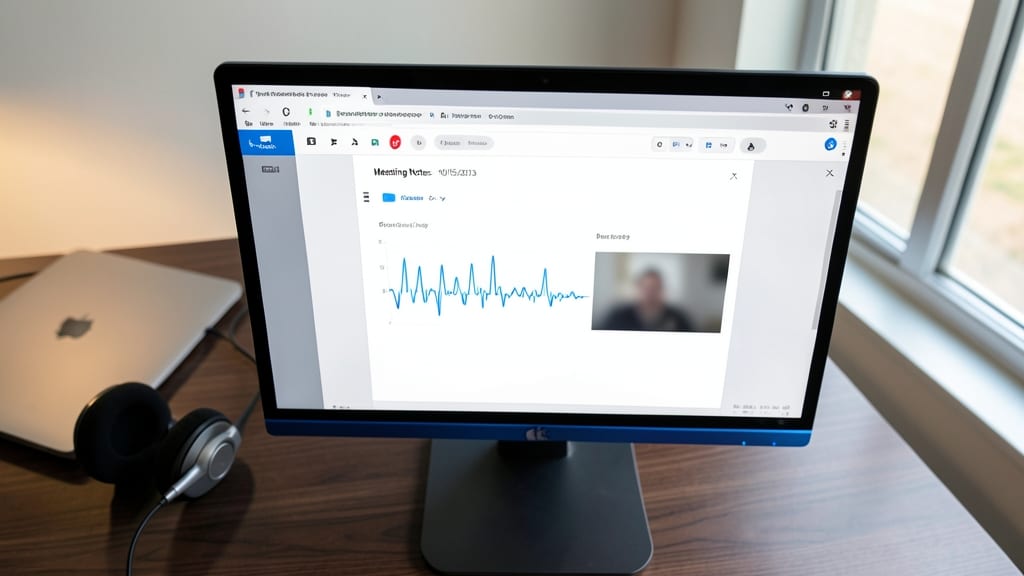
Ever missed a key point in a meeting or lecture because you didn’t have a separate recorder? OneNote 2013 lets you record audio or video clips directly within your notes, turning verbal insights into searchable, organized assets without switching tools.
Simply click the audio or video recording button in the ribbon, capture your session, and embed it alongside typed notes or sketches. The clips play back inline, with timestamps for easy navigation—perfect for educators reviewing lectures or interviewers preserving candidate responses. Files stay neatly organized in your notebook, not scattered across devices.
This feature is a game-changer for field researchers, trainers, or anyone documenting verbal content. No more juggling separate apps—just hit record and keep your workflow seamless. ⚡
Templates for Standardized Note Layouts
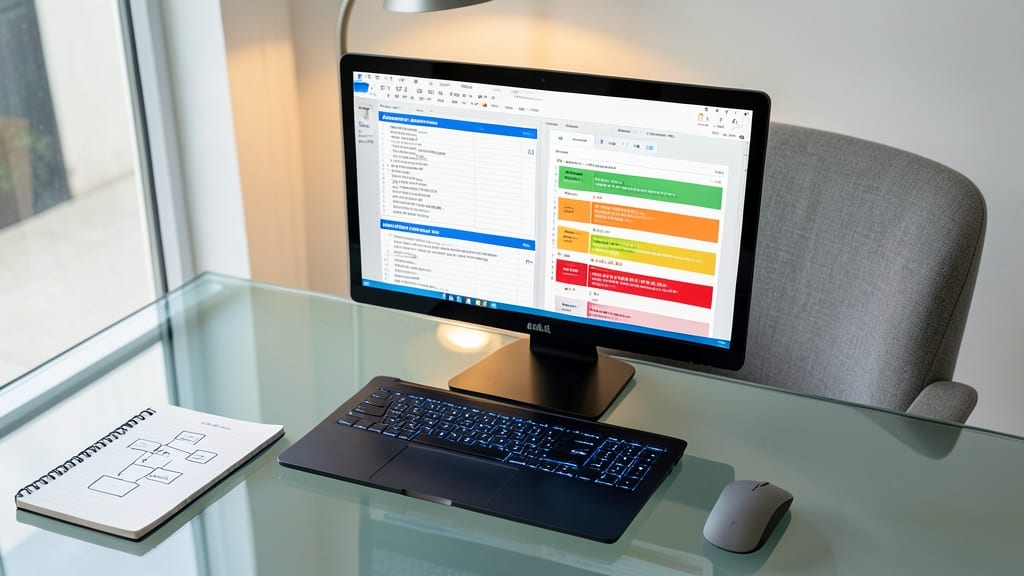
Tired of reinventing the wheel every time you document a meeting or track tasks? OneNote 2013’s pre-built templates save you hours by providing structured layouts for everything from meeting minutes to project plans. No more blank-page paralysis—just click, customize, and go.
Access these templates via File > New in OneNote 2013, where you’ll find options like To-Do Lists, Meeting Notes, and Project Trackers. Each includes placeholders for key details (e.g., action items, deadlines) so you can focus on content, not formatting. The consistent structure ensures your notes look polished and professional, whether shared with a team or reviewed later.
Perfect for project managers, students, or anyone juggling repetitive documentation—these templates turn chaos into clarity with minimal effort. ✨
Section and Page Linking for Cross-Referencing
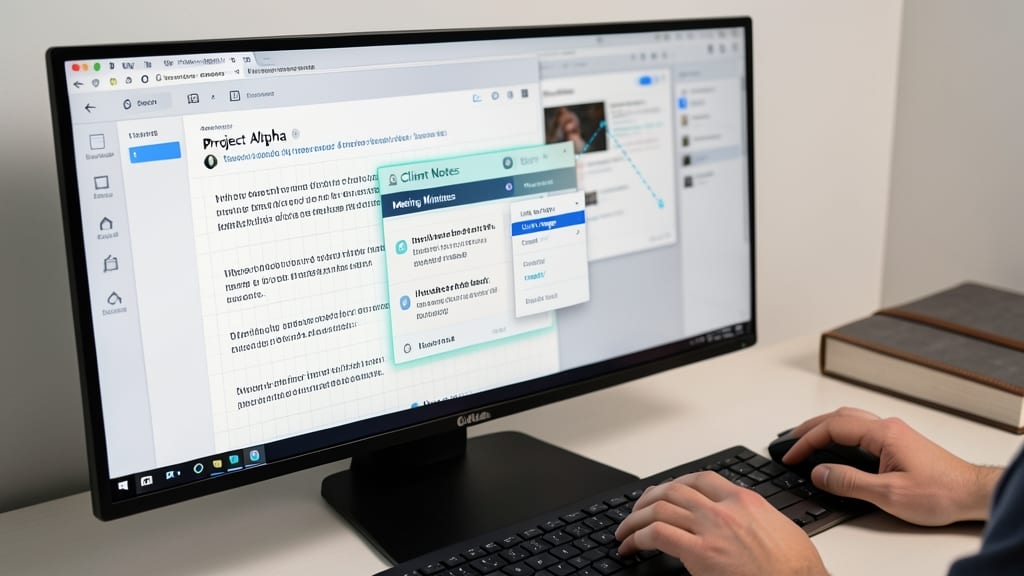
Struggling to keep track of related notes scattered across multiple notebooks? OneNote 2013’s section and page linking feature lets you create instant hyperlinks between notes—no more flipping through pages or searching endlessly.
Simply highlight text, right-click, and select "Link to Page" to jump directly to another section. These links appear as blue underlined text, just like web hyperlinks, and work seamlessly across notebooks. For complex projects, this turns your notes into a dynamic web of connected ideas, saving you hours of digging.
Perfect for researchers, developers, or anyone managing multi-part projects, this feature turns OneNote into a self-navigating knowledge base. ✨
Offline Access and Sync with OneDrive
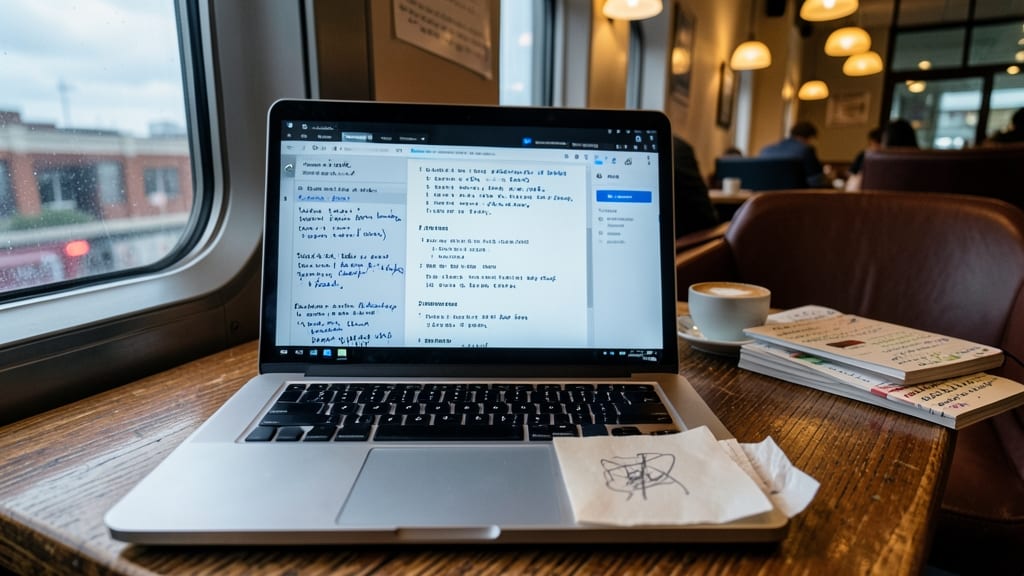
Ever jotted down brilliant ideas on a plane, train, or in a coffee shop with spotty Wi-Fi? OneNote 2013’s offline access lets you work seamlessly without internet—then syncs everything automatically when you reconnect. No more losing notes or waiting for uploads!
Here’s how it works: Enable OneDrive sync in OneNote’s File menu, and your notebooks stay accessible offline. Changes sync automatically when you’re back online, preserving your work. Perfect for travelers, remote workers, or anyone on the go, this feature ensures your notes are always up-to-date—no manual saves needed.
Ideal for those who need reliability in unpredictable connectivity, like consultants, students, or road warriors. Your notes stay safe and ready whenever inspiration strikes. ✨