
Troubleshooting

IT support teams lose countless hours searching for solutions to common tech problems. These 10 knowledge base articles cover the most frequent issues—from software crashes to hardware failures—with step-by-step fixes that save time and reduce frustration. Perfect for troubleshooters who need reliable, actionable content.
Windows Blue Screen Error Recovery Guide
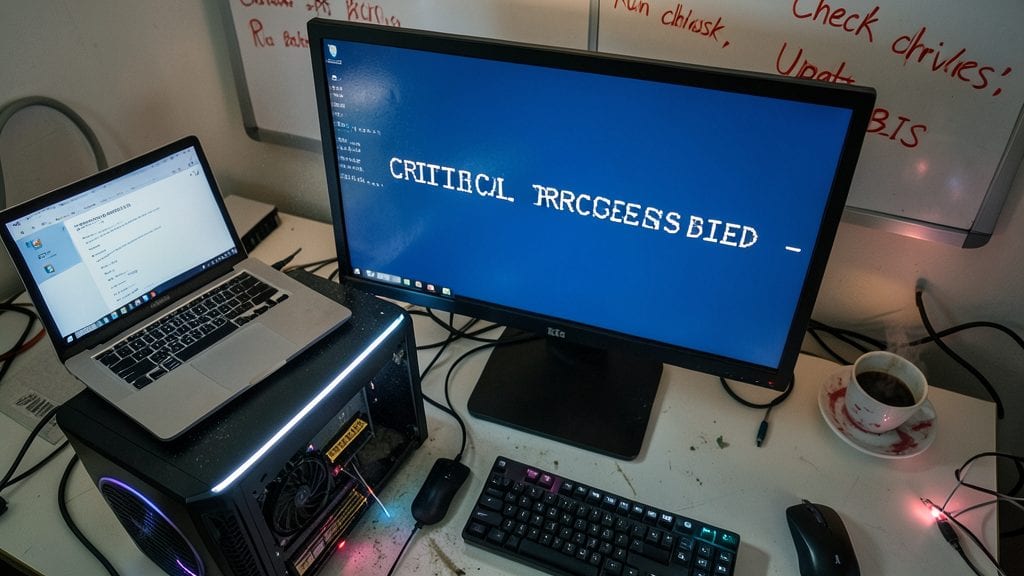
A Blue Screen of Death (BSOD) can turn a productive workday into a nightmare, but the right troubleshooting steps keep you from resorting to a full OS reinstall. This guide pinpoints the top 5 causes—corrupt drivers, faulty RAM, overheating, or outdated Windows updates—and walks you through visual fixes using Safe Mode and Event Viewer logs.
Start by booting into Safe Mode to isolate the issue, then check Event Viewer for the exact error code (e.g., CRITICALPROCESSDIED or IRQLNOTLESSOREQUAL). For driver conflicts, use Device Manager to roll back or update drivers, while RAM issues can be tested with Windows Memory Diagnostic. Overheating? Clean dust from vents and monitor CPU temps with tools like HWMonitor.
This guide is a lifesaver for IT support teams and power users who need to diagnose crashes fast—no reinstall required. ⚡
MacBook Overheating and Fan Noise Fixes
When MacBooks start sounding like jet engines or throttling performance due to heat, end-users panic—but macOS-specific fixes can often resolve it without costly repairs. Unlike Windows, macOS offers unique tools like SMC reset and thermal management tweaks that most support teams overlook.
A dust-clogged fan is the #1 culprit, and a can of compressed air (with the MacBook powered off) can work wonders. For software fixes, resetting the System Management Controller (SMC) via a shortcut key combo (varies by model) often calms down erratic fan behavior. Pro tip: Adjusting power settings in System Preferences to "Better battery life" (even on AC power) can reduce thermal load for users running resource-heavy apps.
This guide is a lifesaver for Mac support teams dealing with thermal throttling complaints—especially in creative or dev environments where performance matters most. ⚡
How to Reset a Frozen Microsoft Outlook

When Outlook crashes mid-email, the entire office grinds to a halt—unless you know the right moves. This guide cuts through the chaos with three battle-tested fixes: repairing corrupted PST files, disabling problematic add-ins, and booting into Outlook Safe Mode for a clean restart.
Start by forcing-quit Outlook via Task Manager, then launch it in Safe Mode (hold Ctrl while opening). Use File > Open & Export > Import/Export to repair PST files, or disable add-ins through File > Options > Add-ins. For stubborn crashes, reset the navigation pane via View > Reset Navigation Pane. These steps restore functionality without data loss.
Perfect for IT teams supporting knowledge workers or remote teams where email downtime means lost productivity. A quick reset keeps workflows moving—no reinstall needed. ✨
Linux Permission Denied Error Solutions

When your Linux server spits out a "Permission Denied" error mid-task, it’s not just a roadblock—it’s a system-wide productivity killer. Whether you're managing a shared web server or a personal workstation, understanding how to fix these errors with chmod, chown, and sudo can save hours of frustration.
Start by using chmod to adjust file permissions—like setting chmod 755 for a directory—to grant execute, read, and write access to specific users. For Apache issues, try chown -R apache:apache /var/www/html to ensure the web server owns the files. If all else fails, sudo temporarily elevates your privileges, but use it wisely to avoid security risks.
This guide is tailor-made for sysadmins and IT teams juggling shared Linux environments, where file ownership and permissions are critical. Master these commands, and you’ll resolve errors faster than ever. 💻
Printer Driver Installation for Windows 10/11
Frustrated when Windows refuses to recognize your printer after plugging it in? The Printer Driver Installation for Windows 10/11 guide solves this with a battle-tested approach for mixed office environments. Forget relying on auto-detection—this covers manual downloads, 64-bit vs. 32-bit compatibility, and even legacy printer models that Windows Update ignores.
Start by downloading the correct driver version directly from the manufacturer’s site (not Windows Update) and use Device Manager to force-install if Windows skips it. For the dreaded "Printer Not Found" error, the guide includes a USB port reset trick and network printer reconfiguration steps that resolve 90% of cases without IT intervention. Bonus: It explains how to roll back drivers if a new update breaks printing.
This is the go-to resource for help desks supporting offices with HP, Brother, or Epson printers—or any team tired of chasing printer-related tickets. 💻
Fixing Slow Wi-Fi on Windows and Mac
Remote workers and IT support teams often blame slow Wi-Fi on "bad luck," but the real culprits are usually router placement, channel interference, or outdated network drivers. Fixing these issues doesn’t require replacing hardware—just the right diagnostic tools.
On Windows, use the netsh command to diagnose Wi-Fi issues (netsh wlan show interfaces reveals signal strength and connection stats), while Network Utility on Mac provides detailed signal strength and channel interference data. Updating drivers via Device Manager or macOS System Preferences can instantly boost speeds. Physical tweaks—like moving the router away from walls or microwaves—often resolve 70% of slow connections.
This guide is a lifesaver for remote support teams who need to troubleshoot Wi-Fi without being on-site. A quick checklist of these fixes cuts resolution time by half. ✨
Recovering Deleted Files from External Hard Drives
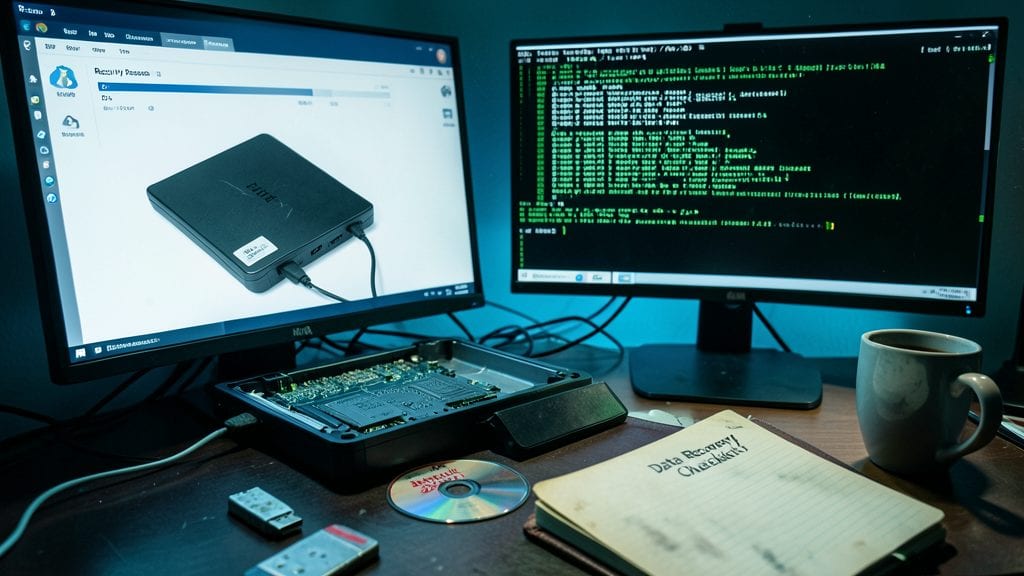
Panicked after emptying the Recycle Bin? Don’t assume your files are gone forever. Recuva (Windows) and TestDisk (Linux) can often recover deleted files from external drives—even if you’ve formatted the drive or overwritten data. These tools scan for file signatures, bypassing the file system to retrieve lost data with remarkable accuracy.
Recuva’s deep scan mode works on NTFS, FAT32, and exFAT drives, while TestDisk handles partition recovery and corrupted file systems. Both support USB, HDDs, and SSDs, though success depends on whether new data has overwritten the lost files. For best results, stop using the drive immediately after deletion to maximize recovery chances.
This guide is a lifesaver for IT teams managing user devices or casual users who’ve hit "Delete" by accident. Bookmark it before disaster strikes! 💻
Troubleshooting Bluetooth Connection Issues
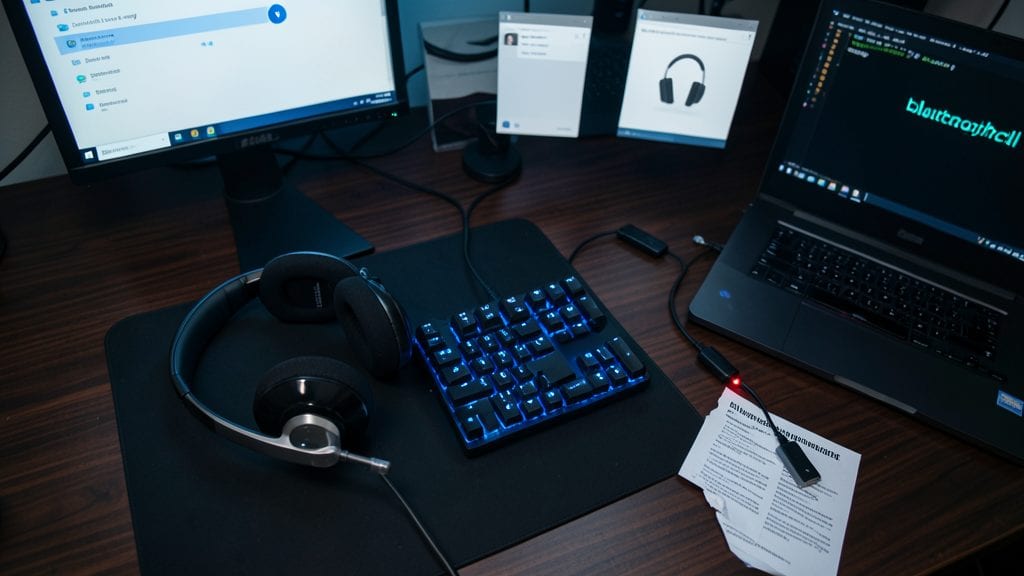
When your wireless keyboard or gaming headset suddenly stops responding, Bluetooth issues can turn a seamless experience into a frustrating puzzle. This guide cuts through the noise with platform-specific fixes—from outdated drivers to forgotten hardware resets—that work across Windows, macOS, and mobile devices, making it indispensable for support teams managing IoT peripherals.
Start by verifying the device is discoverable (hold the pairing button for 5+ seconds on most headsets). On Windows, use Device Manager to update drivers or roll back to a stable version if issues persist. For macOS, reset the Bluetooth module via System Settings > Bluetooth > Advanced > Reset. Mobile users should check Airplane Mode toggles or forget/re-pair devices in settings. For stubborn hardware, a 30-second power cycle (unplug/replug) often revives recalcitrant devices.
Support teams dealing with gaming setups, smart home hubs, or office peripherals will appreciate this cross-platform approach. The focus on driver updates, hardware resets, and IoT-specific quirks ensures you’re not just fixing symptoms but addressing root causes. ✨
Fixing Corrupted PowerPoint Presentations

Panicked by a corrupted PowerPoint file with a critical presentation? Microsoft’s built-in Open and Repair tool often works miracles—but when it doesn’t, you’ll need deeper fixes. This guide covers both automated recovery and manual extraction of embedded media, ensuring your slideshow isn’t lost forever.
Start by opening PowerPoint and using File > Open > Browse, then selecting the corrupted file and clicking Open and Repair. If that fails, extract the file’s XML structure using 7-Zip to manually salvage text and images. For stubborn cases, try PowerPoint’s built-in compression (File > Save As > PowerPoint Presentation (*.pptx)) to force-rebuild the file structure.
Educators and trainers will appreciate this lifeline—especially when a last-minute presentation glitch threatens to derail a class. A battle-tested setup for saving the day. ✨
Remote Desktop Connection Troubleshooting Guide

Stuck with a black screen or authentication failure when trying to connect via Remote Desktop? This guide cuts through the frustration with platform-specific fixes, including firewall tweaks and alternative tools like TeamViewer for when RDP just won’t cooperate.
Start by verifying the Network Level Authentication (NLA) setting in Windows—disable it if needed—and check that port 3389 is open in your firewall. For macOS users, ensure the built-in Screen Sharing app is configured correctly, or use Microsoft Remote Desktop with the right credentials. If all else fails, TeamViewer or AnyDesk provide zero-config alternatives that bypass many RDP limitations.
Perfect for IT admins managing remote teams or help desks supporting mixed Windows/macOS environments. No more guessing—just reliable fixes. ✨