
Operating System
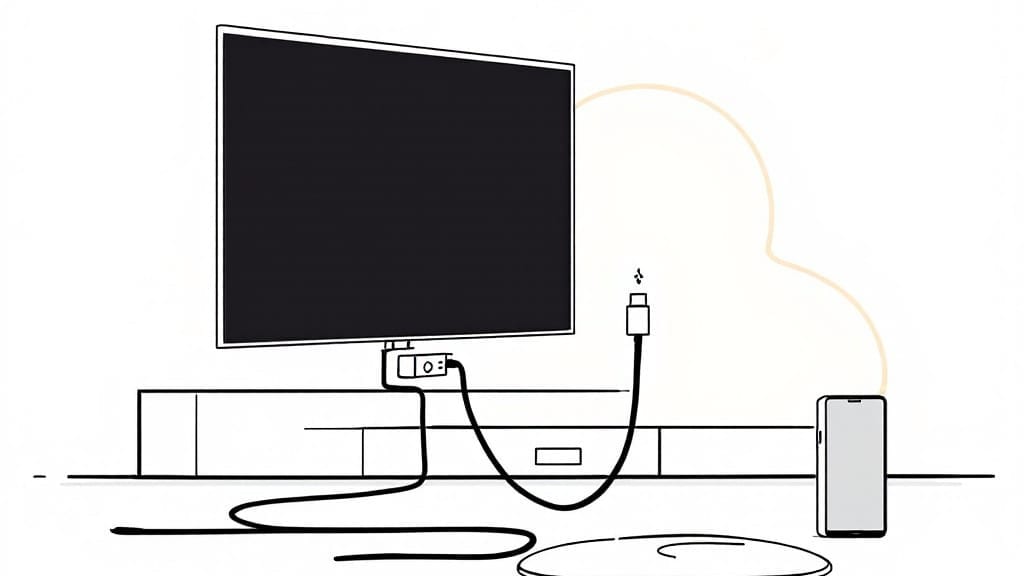
When you see "cast" on a computer, it means sending your screen, audio, or video wirelessly to another device—like projecting your laptop onto a TV or speakers—using tools like Chromecast, AirPlay, or Miracast for cable-free sharing.
This wireless sharing lets you stream movies, presentations, or games without tangled cords. 🌟 The tech behind it converts your digital signal into a format other devices can receive, often through Wi-Fi or Bluetooth.
For example, AirPlay on Macs or the built-in Miracast on Windows PCs handle this automatically, while third-party dongles like Chromecast add extra flexibility for older systems.
What makes casting so handy is its versatility—whether you're mirroring your entire screen or just audio. I've used it to turn my old ThinkPad into a presentation hub at tech meetups, or to stream my Sunday guitar practice (badly) to my living room TV.
The key is checking compatibility first, since not all devices support every casting method.
💡 In This Article
- How Wireless Casting Works on Computers
- Best Ways to Cast from Windows and Mac
How wireless casting works on computers
Wireless casting transforms digital signals from your computer into wireless formats that other devices can receive. Here's what's actually happening: your computer encodes video, audio, or both into a compressed wireless format (like Wi-Fi or Bluetooth) using protocols such as Miracast (Wi-Fi Direct) or HDMI-CEC for TV control.
For example, when you cast to a Chromecast, your laptop sends a 1080p video stream at 30 frames per second by breaking it into smaller data packets that travel through your home Wi-Fi network. 🔥
The key factor is latency—the delay between your action and what appears on the screen. Built-in solutions like Windows Miracast typically add 50-200 milliseconds of delay, while third-party dongles like Chromecast can reduce this to 20-50 milliseconds by using optimized compression algorithms.
HDMI-CEC plays a supporting role by allowing your TV to control multiple devices through a single remote, but it doesn't handle the actual video transmission—just the coordination between devices.
Built-in casting solutions (like AirPlay on Macs or Miracast on Windows) rely on your computer's existing wireless hardware, which means no extra devices are needed. However, these often have limitations—like requiring specific TV models or dealing with 4K resolution only at lower frame rates (24-30fps).
Third-party solutions like Chromecast or Roku Streaming Stick add flexibility by supporting more devices and formats, but they require an additional power outlet and may introduce slight quality trade-offs due to their proprietary compression methods.
What most people don't realize is how casting handles audio separately from video. While video streams are typically compressed using H.264 or HEVC codecs, audio often uses AAC or Dolby Digital Plus formats.
This separation allows you to cast just audio to speakers while keeping video on your laptop—a feature I've used to run presentations while keeping my screen private. The audio path usually has even lower latency (10-30 milliseconds) than video because it requires less bandwidth.
Consider these key technical differences between casting methods:
- Miracast: Uses your computer's Wi-Fi adapter to create a direct Wi-Fi connection (no router needed) with up to 1080p at 30fps and 5.1 surround sound
- AirPlay: Apple's proprietary protocol that supports 4K HDR at 60fps but requires Apple devices or third-party receivers
- Chromecast: Uses your existing Wi-Fi network to stream 1080p at 60fps or 4K at 30fps with Dolby Vision support
- HDMI-CEC: Not a casting method itself, but enables remote control of multiple devices through a single remote
The science behind smooth casting involves sophisticated error correction algorithms that compensate for packet loss in wireless networks. When your router drops a few data packets (which happens frequently in crowded Wi-Fi environments), the receiving device uses buffer memory to reconstruct the missing pieces without noticeable glitches.
This is why you might see a brief pause when opening a new app during casting—your device is temporarily prioritizing maintaining the existing stream quality over launching new content. 💫
Frequently asked questions
What exactly does "casting" do on my computer?
Casting lets you send your screen, video, or audio wirelessly from your computer to another device like a TV, projector, or speakers. It's like creating a wireless HDMI connection—no cables needed! For example, you can cast your laptop to a big-screen TV for presentations or mirror your phone to your computer for editing photos.
Can I cast to any device, or do I need special equipment?
Most modern TVs and monitors support casting, but you might need special hardware depending on your setup. Windows PCs use Miracast (built-in), while Macs rely on AirPlay (requires Apple TV or third-party receiver). For older devices, a Chromecast or Roku dongle plugs into the HDMI port and works with any computer. Always check device compatibility first!
Why does my casted video look blurry or have lag?
Blurry video or lag usually means your network can't handle the data load. Try these fixes: move closer to your router, switch to a 5GHz Wi-Fi network, close background apps, or lower the resolution in casting settings. For Windows, enable "Performance Mode" in Miracast settings. If using AirPlay, connect both devices to the same network for the best results.
Is casting secure? Can someone intercept my screen?
Most casting methods use encrypted connections, but security varies by protocol. AirPlay and Miracast encrypt streams by default, while Chromecast uses Google's security protocols. For sensitive content, avoid public Wi-Fi networks when casting. Pro tip: Use a password-protected home network and keep your devices updated to prevent vulnerabilities.
Can I cast just audio, not the whole screen?
Yes! Many casting methods let you send audio separately. On Windows, right-click the volume icon > "Open Sound settings" > "Output" > "Speakers" > "Connect." Mac users can use AirPlay for audio-only streaming. This is great for presentations where you want to keep your screen private while playing audio through TV speakers.
Final thoughts
So, there you have it—"cast" on your computer isn’t about acting or fishing! 🎬 It’s all about sending audio or video wirelessly to another device, like a TV, speaker, or projector, with ease.
Whether you’re using Chromecast, AirPlay, or built-in features like Miracast, casting simplifies sharing your screen or sound without tangled cables. The key takeaway? It’s your shortcut to seamless entertainment, productivity, or presentations.
Next time you see that cast icon, you’ll know exactly what it means—and how to make the most of it! 🚀