
Coding
Struggling with messy text data in Excel? These 10 essential text functions will transform raw strings into clean, analyzable information—perfect for data professionals and beginners alike. Learn practical examples that solve real-world problems like formatting inconsistencies, extracting key details, and automating reports.
Concatenate Function for Combining Text Fields
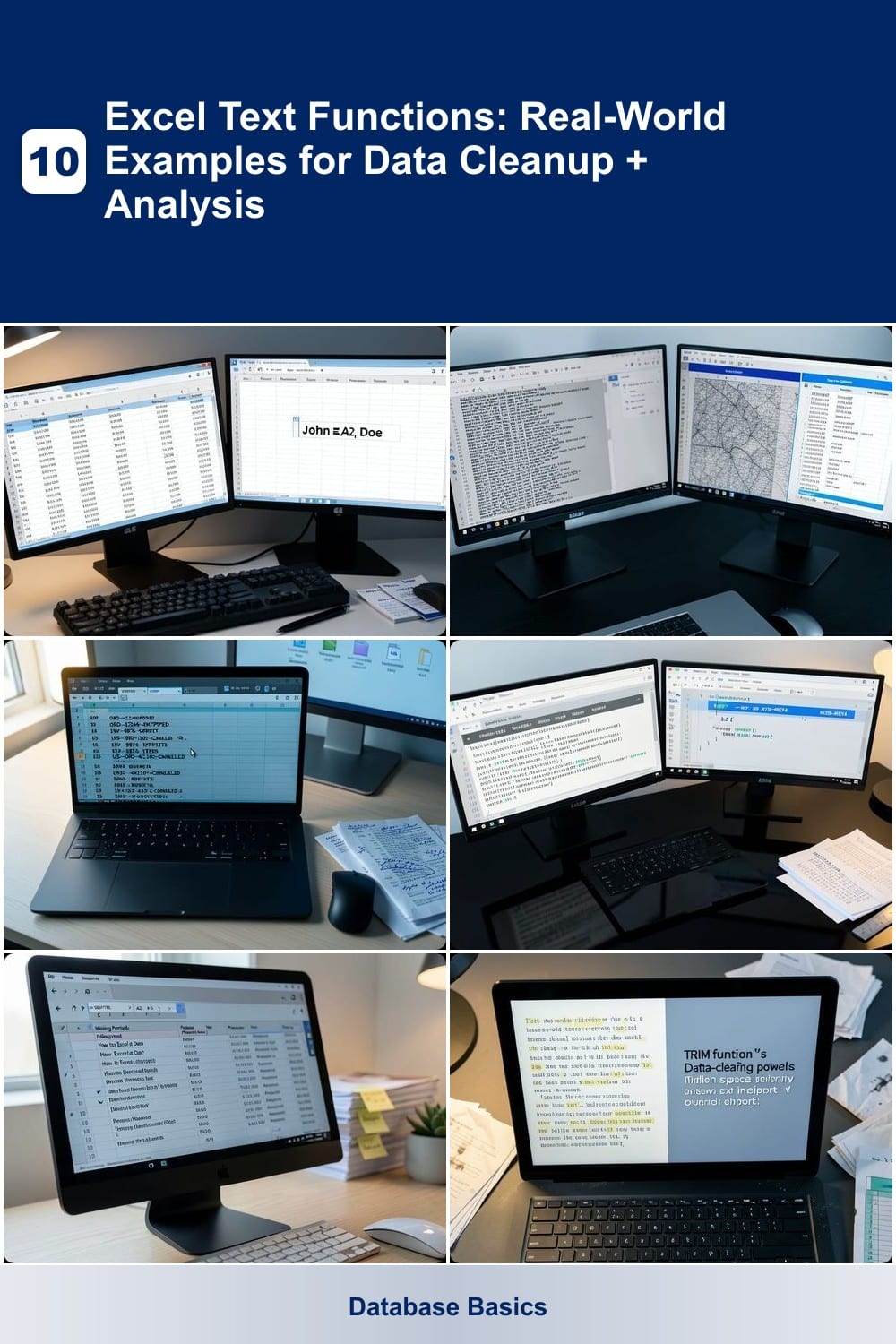
Struggling to combine first and last names split across columns into a single cell for mailing lists or inventory reports? The CONCATENATE function is your time-saving solution—no more manual copy-pasting or error-prone joins. Whether you're merging customer names for a newsletter or product codes for an inventory system, this function handles it all in one clean step.
Simply use =CONCATENATE(A2, " ", B2) to combine text from cells A2 and B2 with a space in between (e.g., "John" + "Doe" = "John Doe"). For more control, add a delimiter like a comma or hyphen. In modern Excel, you can also use the newer =TEXTJOIN() function to include conditions (like skipping empty cells) with =TEXTJOIN(", ", TRUE, A2:B2). Both methods work seamlessly across thousands of rows.
This is a must-have for marketers, inventory managers, and HR teams dealing with split data. Master it, and you’ll never waste time on manual merges again! ⚡
Text to Columns for Splitting Delimited Data

Struggling with CSV files where data is crammed into single cells separated by commas, semicolons, or tabs? The Text to Columns tool in Excel is your lifesaver—no manual copying required. With just a few clicks, you can split messy imports into neatly organized columns, whether you're parsing log files, cleaning up database exports, or restructuring sales data.
Access it via Data > Text to Columns, then choose your delimiter (comma, tab, or custom character) and let Excel handle the rest. Advanced options let you specify data formats (text, date, or number) for each column, ensuring your data imports cleanly. For example, turn a cell like "John Doe, 555-1234, Chicago" into three separate columns instantly—no formulas needed.
This is a must-know for data analysts, developers, and small business owners who deal with messy imports. Once mastered, you’ll wonder how you ever lived without it! 💻
LEFT and RIGHT Functions for Extracting Prefixes and Suffixes

Tired of manually copying order numbers from long strings like "ORD-12345-SHIPPED"? The LEFT and RIGHT functions let you extract just the parts you need—instantly. These functions are perfect for isolating prefixes (like country codes "US" or "CA") or suffixes (like file extensions ".pdf" or ".xlsx") without writing complex code.
Use LEFT(A1, 3) to grab the first 3 characters from cell A1 (e.g., "ORD" from "ORD-12345-SHIPPED"), or RIGHT(A1, 4) to pull the last 4 characters (e.g., ".pdf" from "report_final.pdf"). Combine them with LEN to dynamically adjust extraction length, like RIGHT(A1, LEN(A1)-FIND(".", A1)+1) to isolate file extensions. These functions are zero-config—just plug in your cell reference and number of characters.
Accountants validating invoice prefixes, developers parsing log file paths, or marketers cleaning up email lists will love how these functions cut hours off data prep. ⚡
MID Function for Extracting Middle Text Segments

Need to extract that version number buried in a product description or pull out a serial number from a log file? The MID function is your precision tool for grabbing any substring from the middle of text—no more manual copying and pasting.
Simply specify the starting position, length, and text cell: =MID(A2, 7, 5) extracts 5 characters from position 7 in cell A2. It’s perfect for parsing technical specs (like extracting model numbers from strings like "Product XYZ-12345") or cleaning up inconsistent data formats.
IT admins and data analysts will love this for automating repetitive text extraction tasks—saving hours when dealing with large datasets. ✨
SUBSTITUTE Function for Replacing Text Patterns

Tired of manually fixing typos or inconsistent formatting in your Excel data? The SUBSTITUTE function is your secret weapon for automating corrections—whether it’s adding missing periods in titles or replacing placeholder text in templates.
With just four simple arguments—your text, the old value, the new value, and an optional instance number—you can replace every occurrence of "Mr" with "Mr.", swap "&" for "and", or even clean up "OK" to "Okay" across entire datasets. The function even lets you target specific instances (e.g., replace only the first "X" in a string) for precise control.
This is the go-to tool for customer databases, email templates, or any project where consistency matters. Try it once, and you’ll wonder how you ever lived without it! ✨
TRIM Function for Removing Extra Spaces
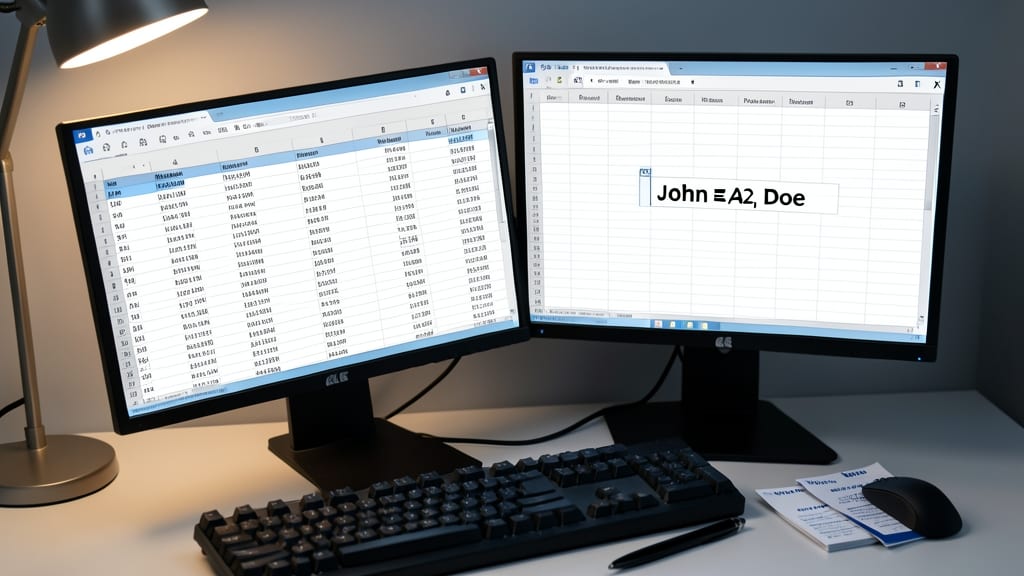
Ever spent hours scrubbing data only to realize your reports won’t sort correctly because of hidden spaces or tabs? The TRIM function is your secret weapon for cleaning up messy text imports—whether from CSV files, PDF exports, or manual entries. It strips extra spaces from the start, end, and between words, ensuring your data plays nice with sorting, filtering, and analysis.
With just =TRIM(A1), you can instantly fix cells like " John Doe " into clean "John Doe". It even handles non-breaking spaces (those sneaky Unicode characters) that cause formatting headaches. Combine it with SUBSTITUTE to replace tabs with spaces first, then TRIM for a foolproof cleanup routine. This is especially useful for financial reports, customer databases, or any dataset where precision matters.
Accountants, data analysts, and small business owners will love this for automating report prep. Just drag the formula down, and watch those messy columns transform into a battle-tested setup. ⚡
UPPER, LOWER, and PROPER Functions for Text Case Formatting
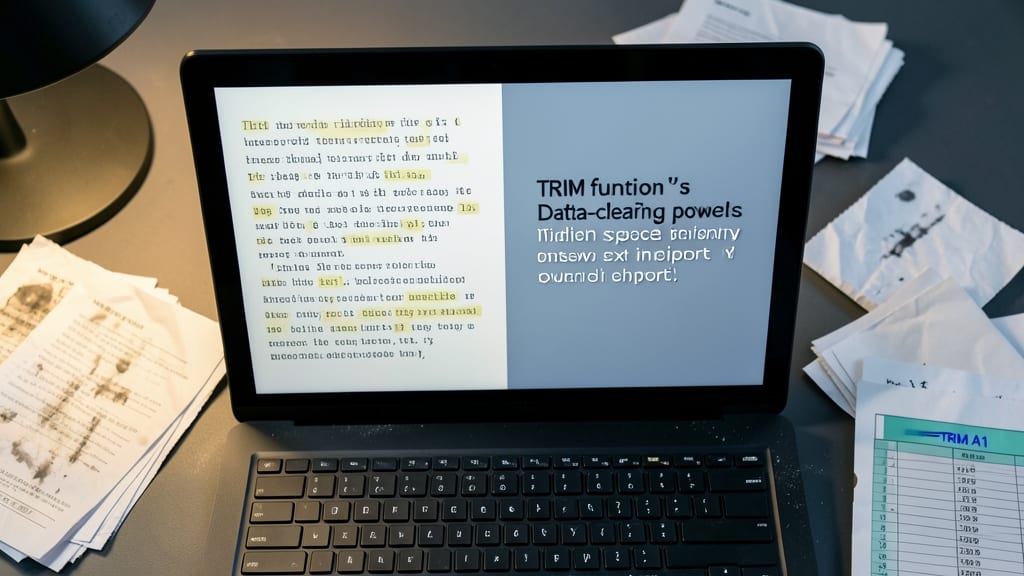
Tired of sorting lists where "john" and "John" appear separately? The UPPER, LOWER, and PROPER functions instantly standardize text cases—critical for databases, reports, and mailing lists where consistency matters.
Use UPPER(A1) to convert all text to uppercase (e.g., "EXCEL" for consistency in headers), LOWER(A1) for lowercase (e.g., "email" addresses), or PROPER(A1) to capitalize each word (e.g., "Alex Thompson" from "alex thompson"). These functions handle thousands of rows instantly, saving hours of manual edits.
Perfect for HR teams formatting employee names, marketers cleaning email lists, or developers standardizing API responses. ⚡
FIND and SEARCH Functions for Locating Text Within Strings

Need to locate hidden patterns in your data? The FIND and SEARCH functions let you pinpoint exact text matches or flexible wildcards—perfect for validating email formats, spotting errors, or extracting dynamic substrings.
FIND returns the position of a specific substring (case-sensitive) while SEARCH ignores case and supports wildcards like and ?. For example, =FIND("@", A1) locates the @ in an email address, while =SEARCH(".com", A1) checks for domain extensions. Both return #VALUE! if text isn’t found—use IFERROR to handle errors gracefully.
Ideal for data analysts validating entries or developers parsing logs, these functions turn manual searches into automated precision. ⚡
LEN Function for Counting Characters in Cells
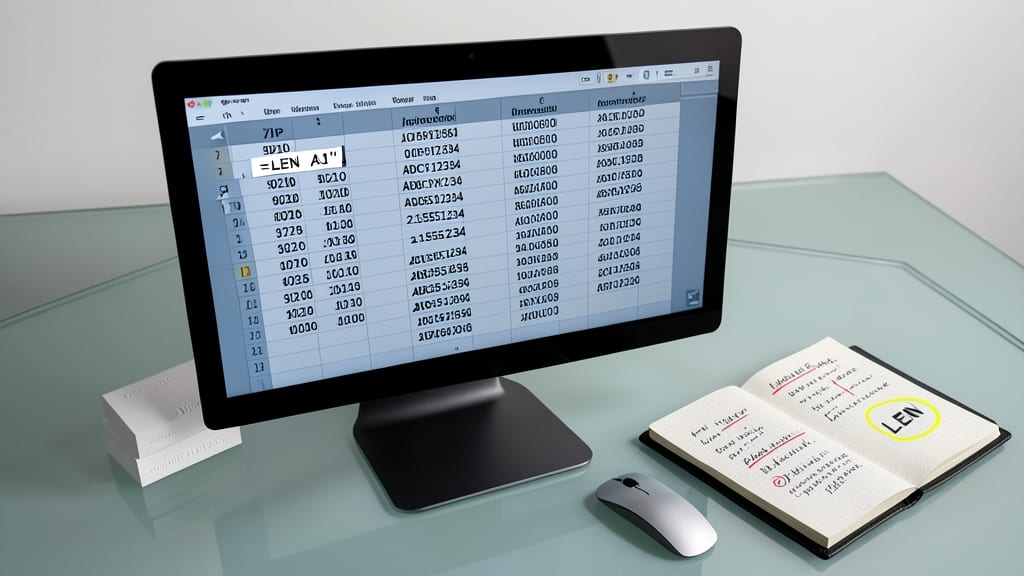
Need to ensure your ZIP codes, phone numbers, or product codes meet strict length requirements? The LEN function is your data quality guardian—counting characters in a flash to validate entries before they cause errors.
Simply type =LEN(cell_reference) to instantly check character counts. For example, =LEN(A2) reveals whether a phone number in cell A2 has 10 digits (standard U.S. format) or if a 5-digit ZIP is actually 9 digits (ZIP+4). Combine it with IF statements to flag invalid entries automatically.
Marketers, admins, and analysts will love this for batch validation—no more manual counting! It’s the fastest way to enforce data consistency across entire datasets. ✨
CLEAN Function for Removing Non-Printable Characters
Ever imported a dataset where hidden characters turn your neatly formatted reports into a jumbled mess? The CLEAN function is your secret weapon against invisible formatting nightmares—removing non-printable characters like zeros, line breaks, and control codes that sneak into your data.
With just =CLEAN(text), you strip away those sneaky culprits that cause misaligned columns or corrupted text. For example, if you import a file with ASCII characters 0-31 lurking in your strings, CLEAN wipes them clean, ensuring your reports look polished and professional. It’s especially useful for CSV imports, PDF exports, or legacy data where formatting gets scrambled.
Perfect for analysts, accountants, or anyone dealing with messy imports—this function saves hours of manual cleanup. ✨