
Microsoft Office

Managing SharePoint document library permissions can be a balancing act between security and usability. These 10 best practices help you implement granular access controls while keeping workflows efficient and frustration-free for your team.
Apply Least Privilege Principle to Users
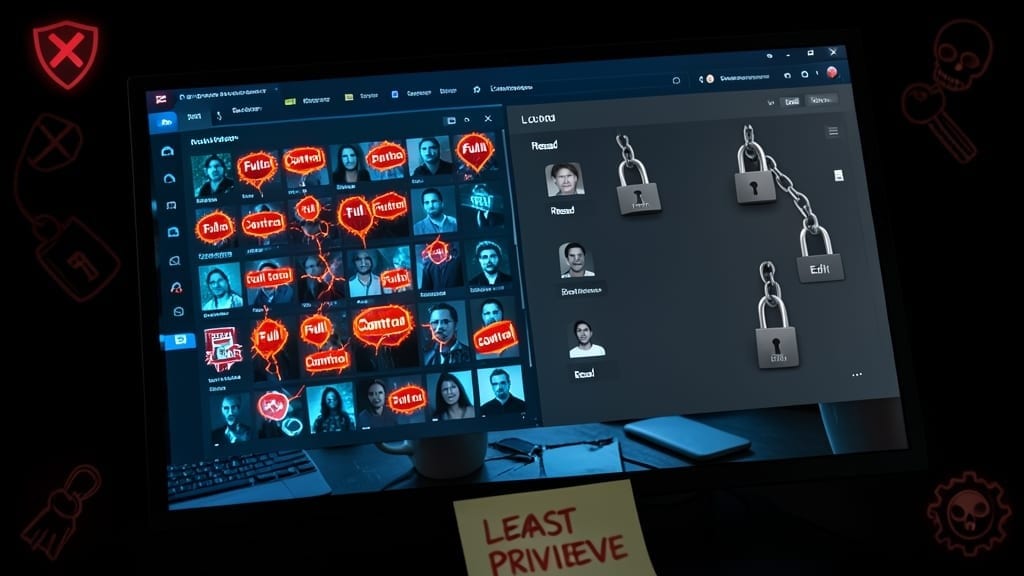
Imagine a SharePoint library where every user has full control—even those who only need to view documents. That’s a security nightmare waiting to happen. The least privilege principle flips the script by granting only the minimum permissions required for each role, locking down access by default.
Start by defining core roles (e.g., Viewer, Editor, Admin) and assign permissions like read-only access for standard employees or edit-only for team leads. Use SharePoint’s built-in permission levels (or create custom ones) to avoid over-permissioning. For example, a Marketing Coordinator might only need to edit documents in their department folder, while Finance users get view-only access to shared reports. This reduces attack surfaces and limits accidental data leaks.
This approach is ideal for enterprise teams managing sensitive data, like HR or legal departments, where strict access controls are non-negotiable. Even smaller businesses benefit from cleaner permissions that simplify audits and cut down on helpdesk tickets from confused users. 💡
Use Permission Levels for Role-Based Access

Default SharePoint permission levels like "Full Control" or "Read" often feel like one-size-fits-all solutions that don’t match your team’s actual workflows. Instead, crafting custom permission levels—such as "Contract Reviewer" or "Internal Editor"—lets you align access with real job functions, not just generic roles.
You can create these levels in SharePoint’s Site Settings under "Permission Levels," where you define granular actions like "Add Items," "Edit Items," or "Delete Items." For example, a "Viewer" level might only allow document downloads, while an "Editor" level adds upload and revision rights. This approach reduces confusion and streamlines approvals by eliminating over-permissioned users.
This strategy shines for teams with specialized workflows, like legal departments needing "Redacted Viewer" access or marketing teams requiring "Asset Contributor" rights. It’s the next logical step after least-privilege access, turning vague roles into precise controls. 💡
Enable Unique Permissions for Sensitive Libraries

When confidential documents demand ironclad security, SharePoint’s unique permissions let you segment access without disrupting broader workflows. Unlike inherited permissions—where settings cascade from parent sites—this approach isolates sensitive libraries, ensuring only authorized personnel (like legal or HR teams) can access them while the rest of your organization remains unaffected.
To implement, navigate to Library Settings > Permissions for this document library, then select Stop Inheriting Permissions. From there, grant access to specific SharePoint groups (e.g., "Finance_Executives") or individual users. Microsoft recommends pairing this with audit logs to track who accesses sensitive files—a critical feature for compliance-heavy industries like healthcare or finance.
This strategy shines for highly regulated teams or departments handling proprietary data, where even a single misconfigured permission could expose critical information. ⚡
Leverage SharePoint Groups for Team Management

Tired of manually assigning permissions to every team member in SharePoint? Department-specific groups are your secret weapon. Instead of juggling individual user access, create groups like 'Marketing Team' or 'Finance Department'—then apply permissions once to the entire group, ensuring consistency across libraries.
This approach cuts down on errors and saves hours of admin work. SharePoint’s built-in group management tools let you nest groups (e.g., a 'Legal' group under 'Compliance') and even sync with Azure AD for seamless updates. Plus, you can easily audit group memberships to spot inactive users or role changes.
Perfect for mid-sized to large teams where roles shift frequently—like marketing campaigns or seasonal projects. Your IT team will thank you for the simplicity! ✨
Restrict External User Access with Care

External collaboration doesn’t mean sacrificing security. SharePoint’s external sharing settings let you restrict access to specific libraries while still enabling partner collaboration—just with tighter controls than open invites.
Start by enabling specific library sharing instead of site-wide access. For partners, generate guest links with expiration dates (e.g., 30-day limits) to automatically revoke access after the project ends. Combine this with view-only permissions for sensitive files and require Microsoft account sign-in for all external users to verify identities.
This approach is perfect for legal teams sharing contracts with clients or IT departments collaborating with vendors—keeping your data secure while maintaining the flexibility to work with outsiders. ✨
Audit Permissions Regularly with Access Reviews

Your SharePoint library isn’t static—team structures evolve, employees leave, and roles shift. Without regular permission audits, you risk granting access to inactive accounts or outdated roles, creating security gaps that could expose sensitive data.
Microsoft’s Access Reviews feature automates this process by letting you schedule quarterly permission reviews with customizable frequency. You can identify inactive users (those who haven’t accessed the library in 90+ days) and adjust permissions based on role changes—like promoting a team member or reassigning a project owner. The built-in activity logs highlight who accessed what, making it easy to spot anomalies or unnecessary privileges.
This is especially valuable for large organizations or teams with high turnover, where manual permission checks would be time-consuming. By setting up automated reviews, you ensure your library stays secure and aligned with current team dynamics—without the overhead. ✨
Implement Versioning Controls for Critical Documents

Ever lost a critical document because the wrong edit slipped through? SharePoint’s versioning controls with permission restrictions act like a digital time machine—locking down changes while keeping a full audit trail for compliance and recovery.
Enable major and minor versioning for sensitive files, then restrict edit permissions to approved users only. This ensures only authorized personnel can overwrite documents, while the system automatically saves every change. Need to roll back? The version history lets you restore previous drafts with one click, even after accidental deletions.
Ideal for legal teams, finance departments, or any workflow where document integrity matters most. Combine this with retention policies to auto-archive old versions, keeping your library clean while staying audit-ready. ✨
Use Folder-Level Permissions Sparingly
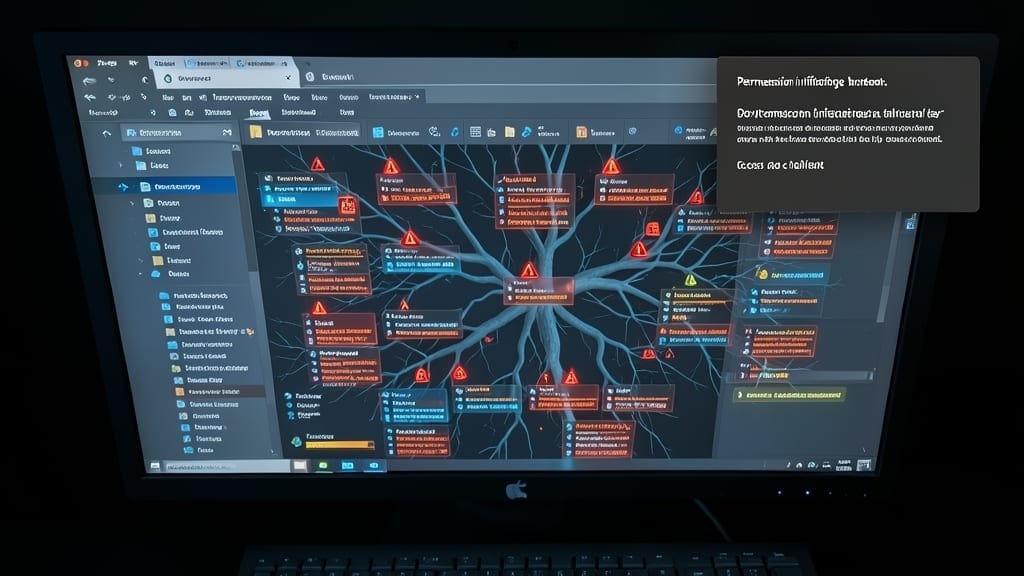
When your SharePoint library grows, folder-level permissions can quickly turn into a tangled mess. Each nested permission breaks inheritance, creating an administrative nightmare that slows down access and complicates audits. Microsoft’s own documentation warns that deeply nested folder permissions lead to permission inheritance conflicts and harder-to-troubleshoot access issues.
Instead of drilling down, apply permissions at the library level and use metadata-based filtering (like department tags or project codes) to organize content. This approach maintains clean inheritance while still letting you control access—think of it as applying a single security rule to a whole dataset rather than managing thousands of individual exceptions. Tools like SharePoint’s "Columns" feature let you filter views by metadata, so teams only see what they need without complex folder structures.
This strategy works best for large teams managing shared libraries (like HR or finance departments) where documents naturally group by metadata rather than folder hierarchy. It also simplifies compliance audits by reducing permission sprawl. ⚡
Enable Multi-Factor Authentication for Admins

Credential theft is a silent threat—especially for admins who manage SharePoint permissions. A single compromised account can grant attackers full control over your document libraries, allowing them to modify access rights, delete critical files, or exfiltrate sensitive data.
Enabling Multi-Factor Authentication (MFA) for SharePoint administrators adds an extra layer of defense by requiring a second verification step (like a code from an app or text message) beyond just passwords. Microsoft’s Azure AD MFA integrates seamlessly with SharePoint Online, and the setup takes less than 15 minutes. Even if credentials are stolen, attackers won’t gain access without the second factor.
This is non-negotiable for organizations handling confidential or regulated data—like healthcare records, financial documents, or legal contracts. Start by enforcing MFA for your Site Collection Administrators first, then expand to other admin roles. 💪
Train Teams on Permission Best Practices

Even with the best permission settings, human error remains a top security risk. Interactive workshops and documented guidelines can turn your team from potential vulnerabilities into your strongest defense against accidental data leaks.
Start with role-specific training modules that explain why permissions matter—like how a Marketing Contributor shouldn’t edit HR files. Use SharePoint’s built-in training templates or create custom videos showing real-world scenarios (e.g., "What happens when you share a client proposal with the wrong team?"). Pair this with for common tasks like granting access to new hires or archiving old projects.
Teams in highly regulated industries (finance, healthcare) will see immediate ROI, but even creative departments benefit from clear rules that prevent "oops" moments. A quick 30-minute session can save hours of cleanup later. ✨