
Software
Microsoft Edge packs powerful features to transform your browsing experience—but most users miss the hidden performance boosters. These seven tips will supercharge your speed, security, and efficiency without sacrificing usability.
Enable Immersive Reader for Focused Reading
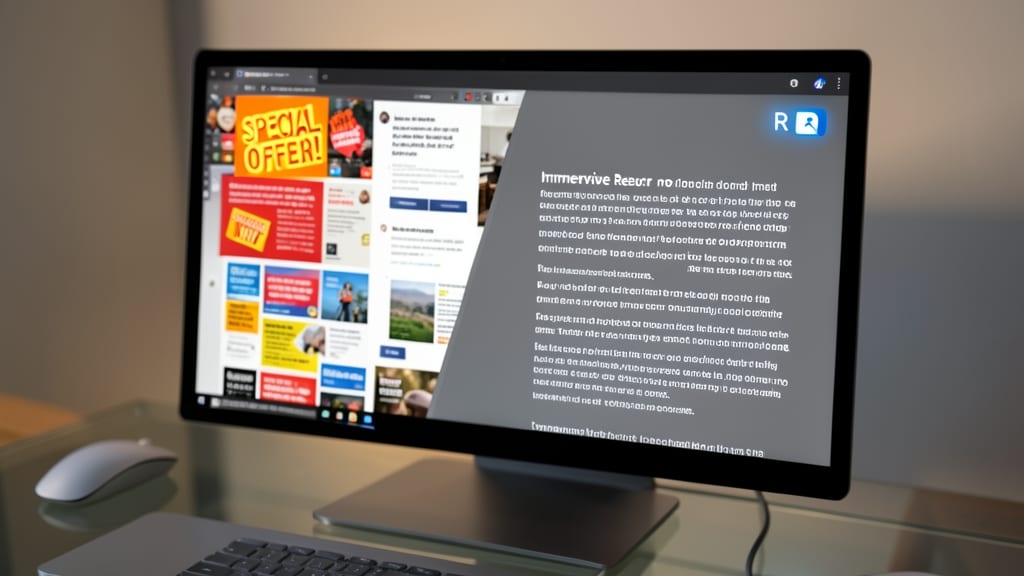
Drowning in ads, pop-ups, and clutter while trying to focus on a research paper or article? Microsoft Edge’s Immersive Reader strips away the noise, leaving only clean, distraction-free text—perfect for deep work sessions.
With a single click, it converts any webpage, PDF, or Microsoft 365 document into a minimalist, high-contrast layout with adjustable font sizes, line spacing, and even text-to-speech. The feature also highlights parts of speech and translates text on the fly, making it a powerhouse for students, researchers, or professionals tackling dense content.
Best of all, it’s built into Edge—no extensions or extra tools needed. Just hit Ctrl+Alt+I (Windows) or Cmd+Option+I (Mac) to transform your screen into a serene reading environment. ✨
Use Collections to Organize Research Instantly
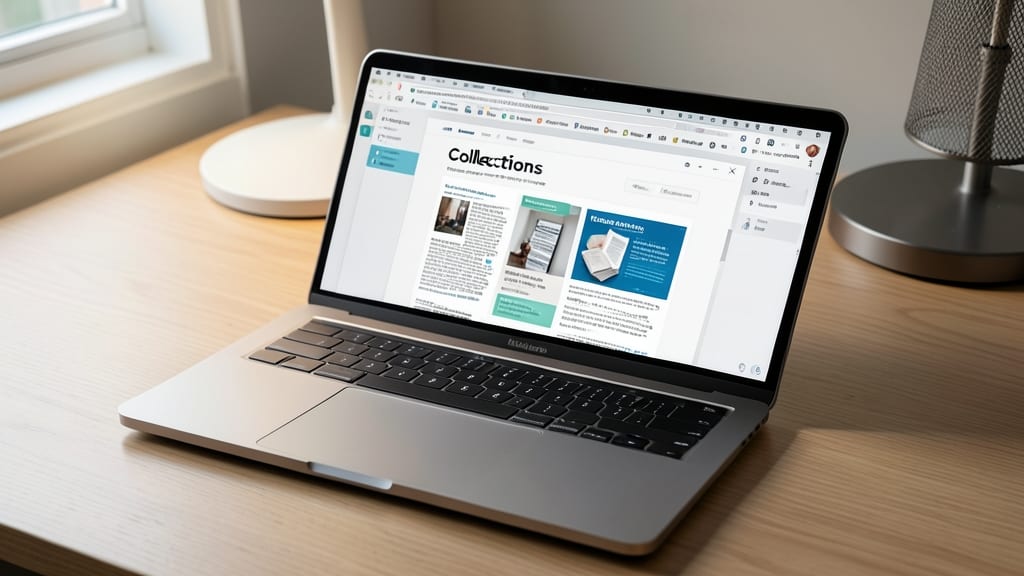
Tired of losing research notes or juggling dozens of tabs while compiling sources? Microsoft Edge’s Collections feature turns your browser into a digital sticky-note system—perfect for journalists, students, or researchers who need to curate content fast.
With just one click, you can save web pages, images, and even snippets of text into a customizable collection, complete with annotations and highlights. The feature syncs across devices via your Microsoft account, so your work stays accessible whether you’re at your desk or on the go. No more scattered bookmarks or lost tabs—just organized, searchable groups of related content.
This is the ultimate tool for anyone who spends hours gathering information. Try it next time you’re drafting a report or planning a project—your future self will thank you. ✨
Clear Browsing Data with One-Click Reset
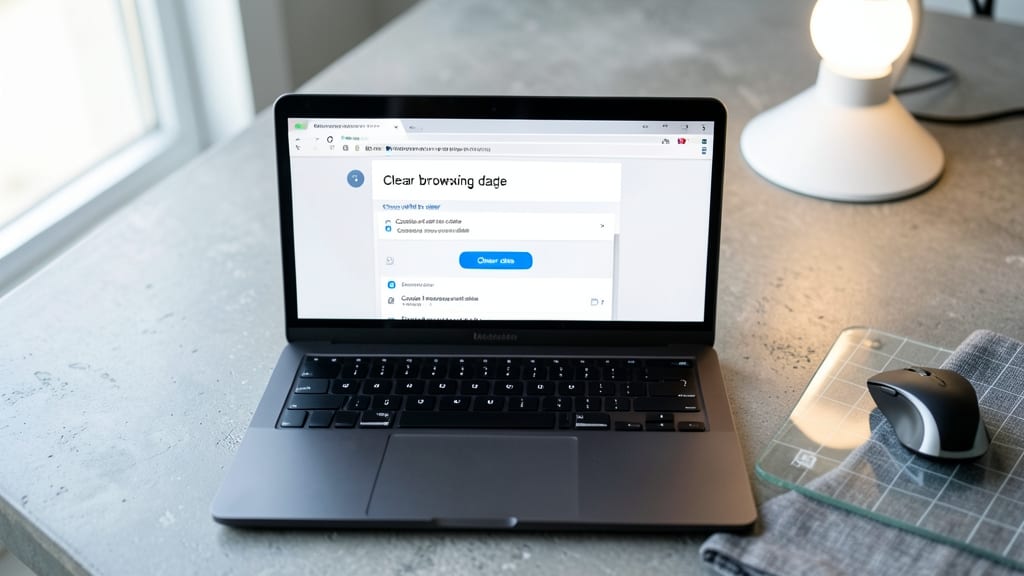
Struggling with sluggish browsing or mysterious crashes in Microsoft Edge? A one-click reset can work wonders by wiping cached files, cookies, and temporary data—often resolving performance hiccups instantly.
Edge’s Clear browsing data tool lets you target specific items (like cookies or history) or use the ‘Clear all’ option for a full privacy sweep. This is especially useful for users on slow connections or those troubleshooting login issues. The process takes seconds via Ctrl+Shift+Del, and you can even schedule automatic clearing for added convenience.
Perfect for casual users who want faster loads or privacy-conscious individuals clearing sensitive data. Just remember: this won’t delete bookmarks or passwords—only temporary files that slow things down. ✨
Enable Hardware Acceleration for Faster Rendering
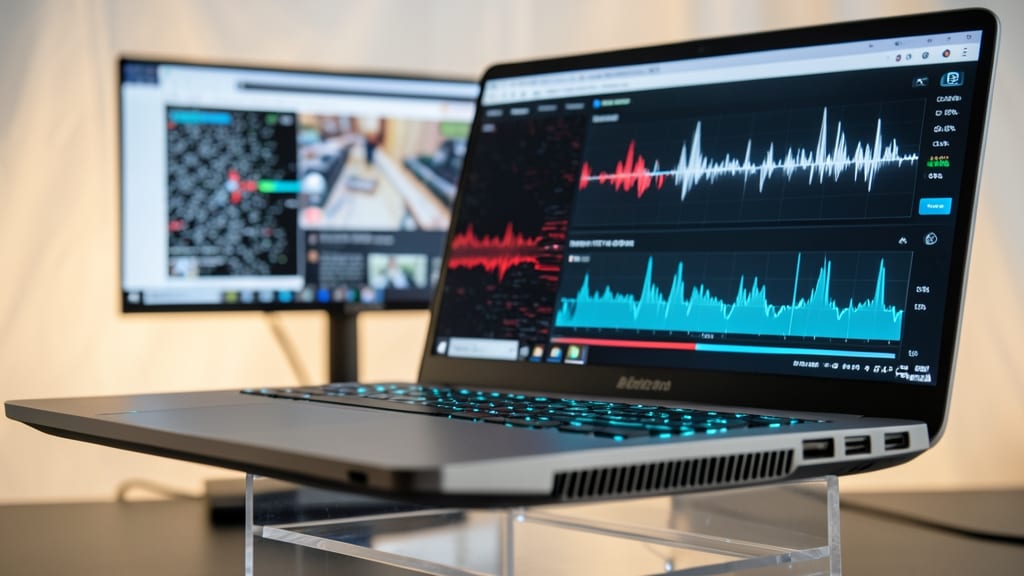
Tired of choppy videos or laggy animations in Edge? Your GPU could be doing more—but it’s likely sitting idle. Enabling hardware acceleration offloads rendering tasks from your CPU to your graphics card, delivering smoother playback and faster load times for everything from YouTube videos to complex web apps.
To turn it on, head to Edge Settings > System > Hardware Acceleration and toggle it to "On". This setting works best with DirectX 12 and WebGL support, meaning modern GPUs (even integrated ones like Intel UHD or AMD Radeon) will see improvements. Gamers will notice smoother in-game browser stats, while video editors can expect faster previews of 4K content.
This tweak is perfect for power users who multitask (e.g., streaming while editing) or anyone with a dedicated GPU looking to maximize its potential. Just be sure to restart Edge after enabling it for the full effect. ⚡
Customize Startup with Favorite Sites Only
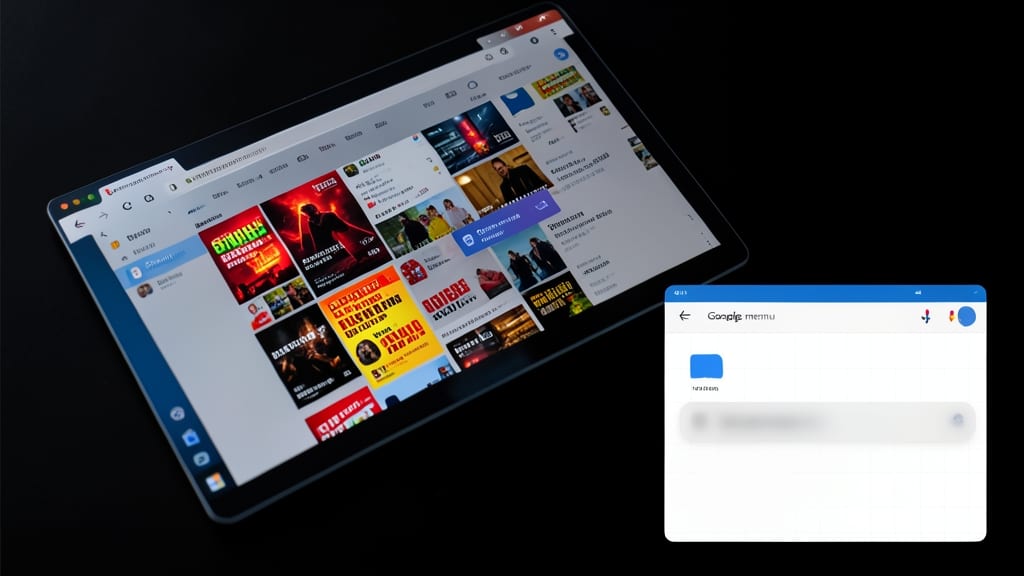
Tired of waiting for Edge to load a cluttered homepage filled with ads and unnecessary extensions? A custom startup page can shave seconds off your boot time while keeping only the sites you actually need.
Head to Settings > On startup and toggle "Open new tabs with" to "Specific pages." Then, pin your favorite sites (like Google, Outlook, or Notion) and disable all extensions from running at launch. This zero-config tweak ensures a clean, distraction-free start every time—ideal for professionals who waste time closing tabs or waiting for ads to load. ⚡
Block Resource-Intensive Extensions Automatically
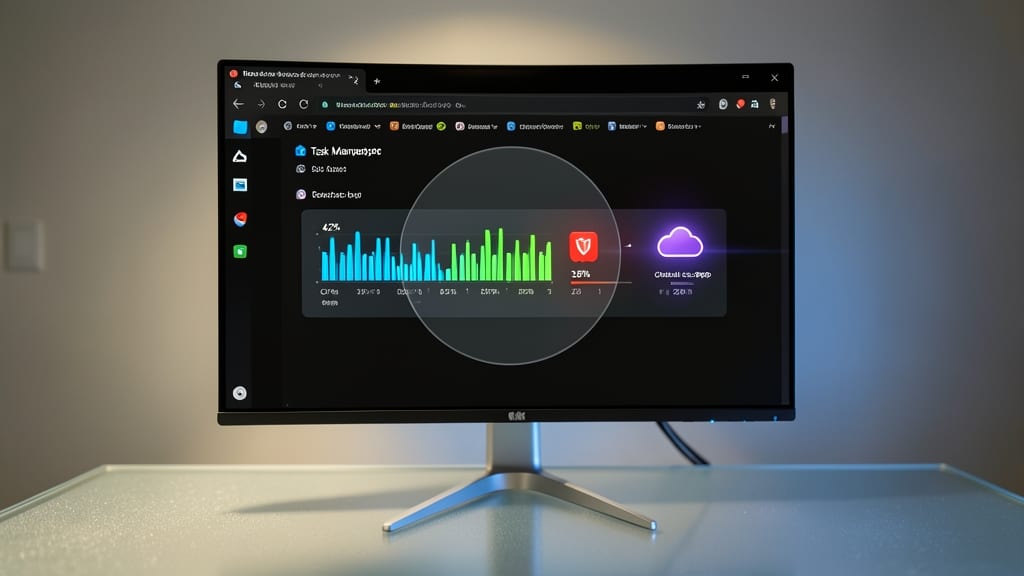
Tired of Edge slowing to a crawl when you’ve got too many tabs and extensions running? Microsoft Edge now automatically detects and pauses resource-heavy extensions—no manual guesswork required. This hidden feature uses real-time performance metrics to identify which extensions are hogging your CPU or memory, then temporarily disables them until you need them again.
To enable it, head to Settings > Extensions > Performance Impact and toggle on "Block resource-intensive extensions." Edge will then monitor usage and flag culprits like slow ad blockers, heavy scripts, or background sync tools—often restoring smooth performance within seconds. You’ll even see a visual warning next to problematic extensions, making it easy to re-enable them only when necessary.
This is a game-changer for power users, developers, or anyone juggling multiple tools—like designers with Figma plugins or marketers running analytics extensions. No more trial-and-error disabling! ⚡
Enable Dark Mode for Battery and Eye Strain
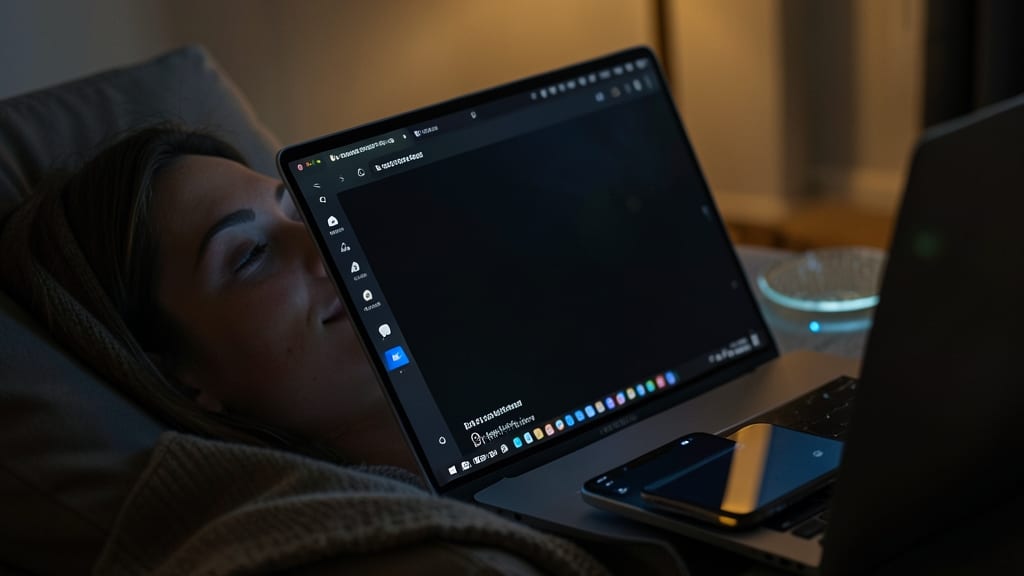
Tired of squinting at bright screens late at night or watching your battery drain faster than a meme goes viral? Microsoft Edge’s Dark Mode does double duty—it cuts blue light emissions by up to 50% (great for your eyes) and extends battery life on OLED displays by reducing power-hungry pixels.
Enabling it is effortless: Just toggle the switch in Settings > Appearance or use the Ctrl+Shift+P shortcut to cycle through themes instantly. The sleek interface isn’t just pretty—it’s optimized for low-light conditions, making it ideal for developers debugging code or night owls scrolling through news. Plus, it syncs across devices if you’re signed into your Microsoft account.
Perfect for gamers, night-shift workers, or anyone with light-sensitive eyes, this tweak makes browsing feel like a spa day for your retinas. ✨