
PowerPoint
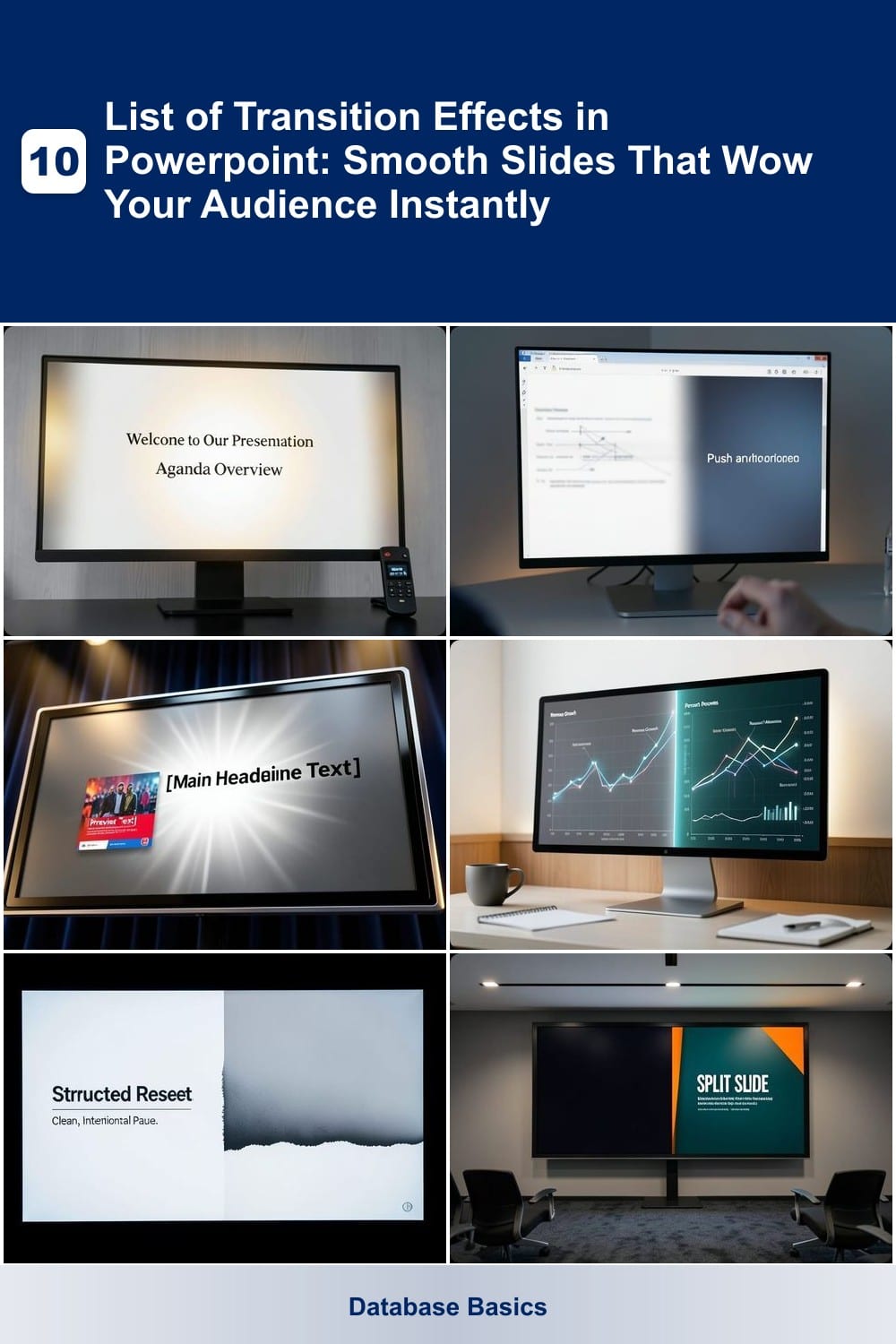
Want to make your PowerPoint presentations more dynamic and professional? These seven transition effects will instantly elevate your slides, keeping your audience engaged and your message impactful without looking unprofessional.
Fade Slide Transition for Elegant Simplicity
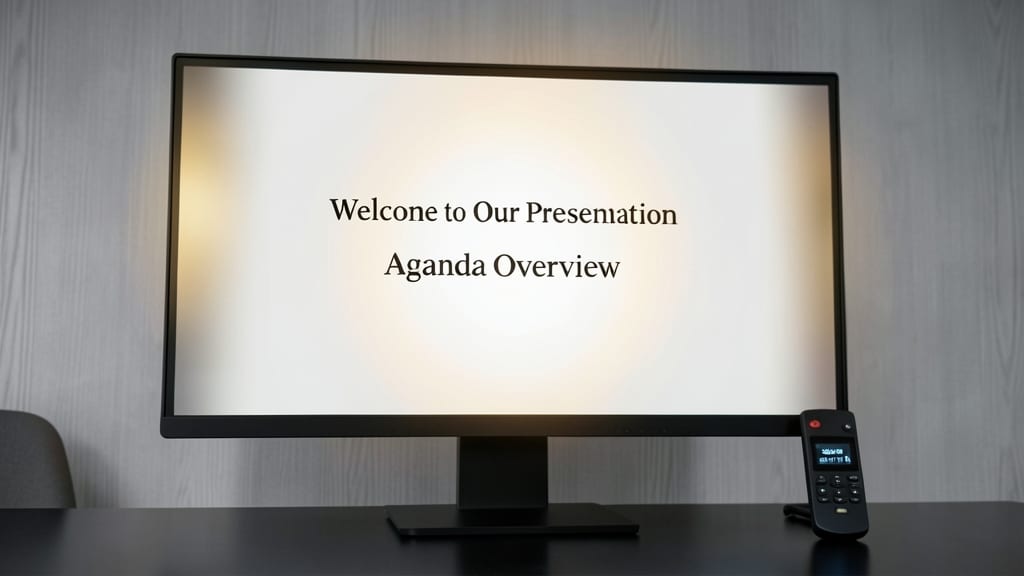
The Fade transition in PowerPoint is the ultimate "less is more" effect—smooth, subtle, and universally professional. Unlike flashy animations, it dissolves one slide into the next with a soft glow, creating a seamless flow that keeps your audience focused on your message, not the visuals.
Available in all PowerPoint versions (2013 and later), this transition offers customizable speed and direction (fade in/out) to match your pacing. Pair it with a minimalist color scheme (think dark backgrounds with light text) to amplify its elegance. The effect works flawlessly for corporate reports, academic presentations, or client pitches—any scenario where you want to maintain a polished, distraction-free delivery.
This is the go-to choice for presenters who prioritize timeless professionalism over trendy effects. Use it consistently across your deck for a cohesive, high-end look that never dates. ✨
Push Slide Transition for Dynamic Movement
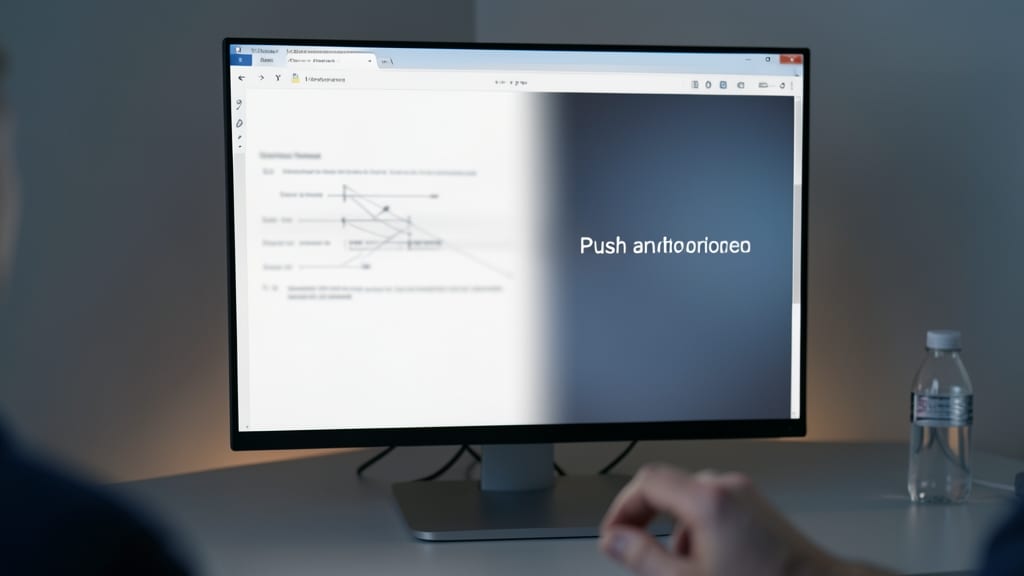
Struggling to keep your audience engaged as you walk through a process or tell a story? The Push transition in PowerPoint is your secret weapon—it creates a cinematic sense of movement, sliding one slide out while the next slides in from the opposite direction. This directional flow naturally guides your audience through sequential steps, making complex ideas feel intuitive and easy to follow.
Available in all modern versions of PowerPoint (including 2016, 2019, and 365), this transition lets you customize the direction (left, right, up, or down) and speed to match your pacing. For example, use a right-to-left push to signal progression in a timeline or a top-to-bottom push to emphasize hierarchical data. The effect works best with minimalist slide designs—bold text or clean visuals ensure the transition enhances, rather than distracts from, your content.
Storytellers, trainers, and educators will find this transition especially useful for walkthroughs, case studies, or step-by-step guides. Use it sparingly—once per section—to maintain professionalism while adding a dynamic touch. ⚡
Zoom Slide Transition for Emphasis
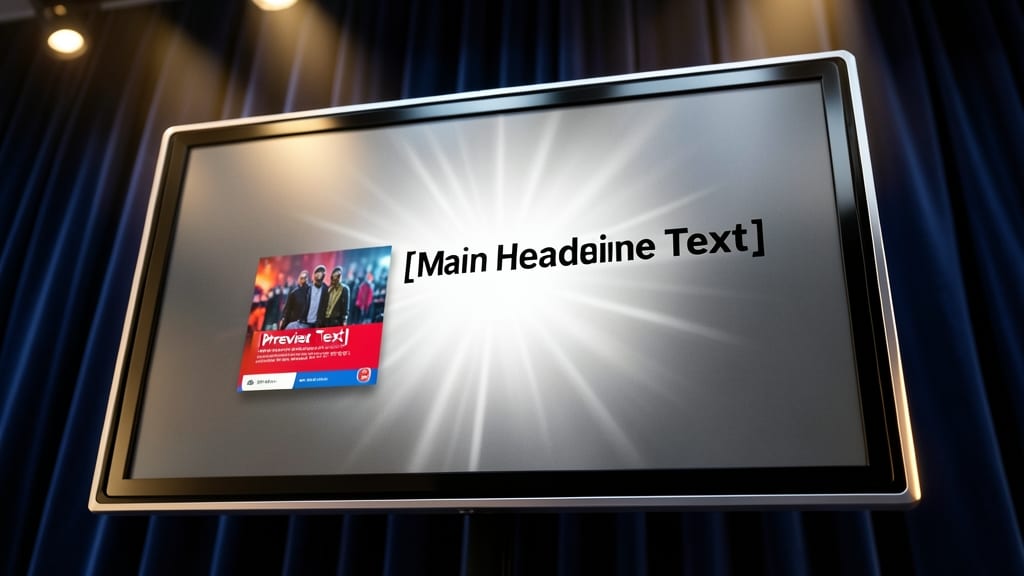
Need to make a slide pop and keep your audience’s eyes locked on your screen? The Zoom transition does exactly that by creating a dramatic zoom-in effect from a thumbnail to full-screen view, instantly signaling that what’s coming next is important.
This transition works by scaling up the slide from a small preview to its full size, with customizable speed and direction (zoom-in or zoom-out). It’s perfect for highlighting key takeaways or marking transitions between major sections—like shifting from data to conclusions. Pair it with a bold color scheme or high-contrast text for maximum impact.
Presenters delivering high-stakes pitches or keynote speeches will love this effect, as it adds energy without sacrificing professionalism. Just avoid overusing it—save it for moments where you want your audience to feel the shift. ✨
Morph Slide Transition for Seamless Flow
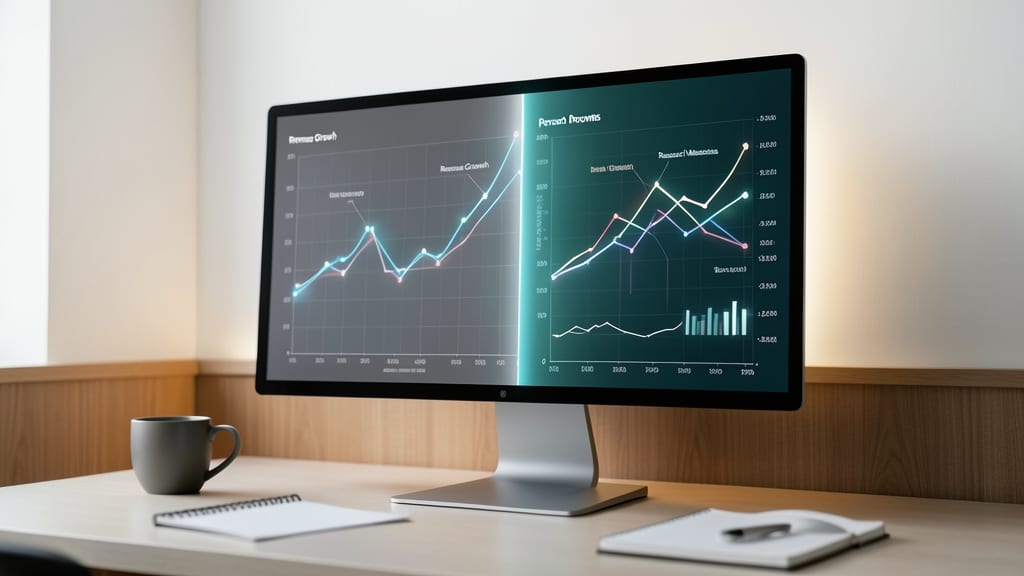
When your data tells a story of gradual shifts—like financial trends or scientific progress—you need a transition that mirrors that evolution, not a jarring cut. The Morph transition in PowerPoint is designed for this exact purpose, letting elements like charts, graphs, or text seamlessly transform from one state to another without losing continuity.
Available in PowerPoint 2019 and Microsoft 365, Morph works best with shapes, text boxes, and objects that share similar structures. You can adjust the transition speed and even add a subtle morphing path for added visual interest. For example, turn a pie chart into a bar chart mid-presentation, or smoothly adjust a timeline’s endpoints to reflect new data—all while keeping your audience’s focus on the content, not the mechanics.
This is the go-to choice for analysts, researchers, and educators who need to highlight incremental changes without distracting from their message. Try it when you want your data to feel alive and evolving. ✨
Wipe Slide Transition for Clean Breaks
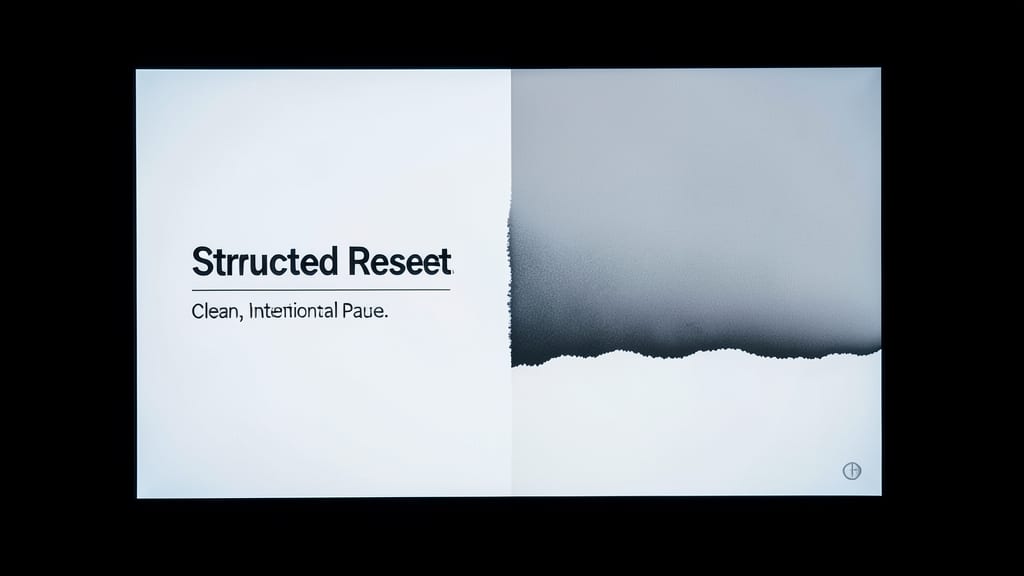
Need a sharp visual break between presentation sections? The Wipe transition delivers a clean, intentional pause that signals a theme shift without overwhelming your audience. Unlike flashy effects, this horizontal or vertical "wipe" creates a structured reset—ideal for separating chapters, case studies, or key takeaways.
You can customize the wipe direction (left/right/up/down) and speed to match your pacing, and it works seamlessly across PowerPoint 2016 and later. The transition’s simplicity ensures it won’t distract from your content, making it a favorite for corporate reports or educational slides where clarity matters most.
Perfect for presenters who want subtle but deliberate transitions—think of it as the "scene change" of your presentation. ✨
Split Slide Transition for Dramatic Reveals
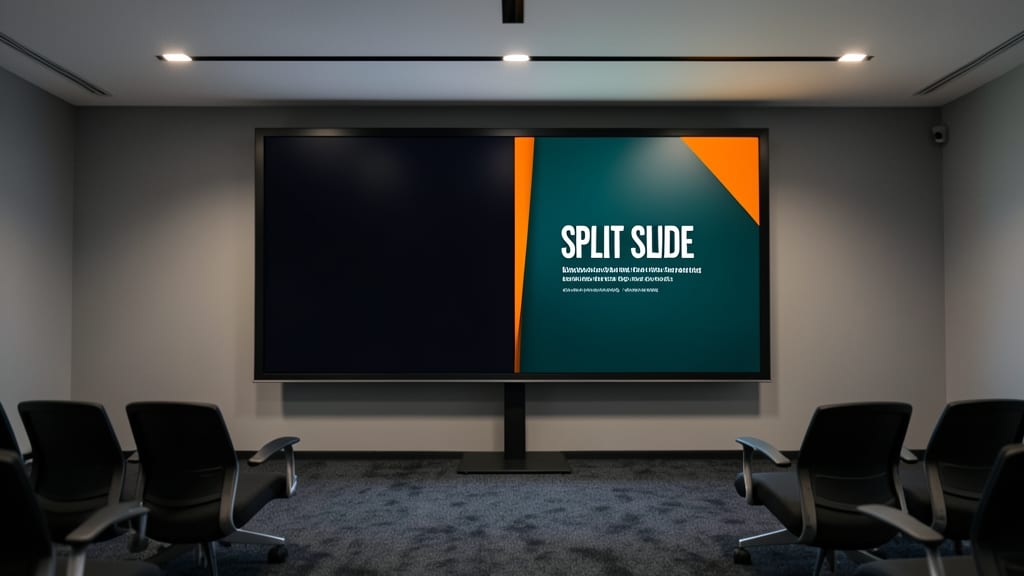
Need to make your final slide unforgettable? The Split Slide Transition delivers a cinematic reveal by dividing your screen into two halves—perfect for unveiling conclusions, big announcements, or pivotal moments in your presentation.
This effect creates a vertical or horizontal split that gradually merges to display your content, adding a dramatic pause before the big reveal. You can customize the split direction (left/right or top/bottom) and adjust the timing to control the reveal's intensity. It’s especially effective when paired with a bold background or high-contrast text to maximize impact.
Ideal for keynote speakers, product launches, or closing arguments, this transition turns ordinary slides into a memorable spectacle without sacrificing professionalism. ✨
Box In or Out Transition for Focused Highlights
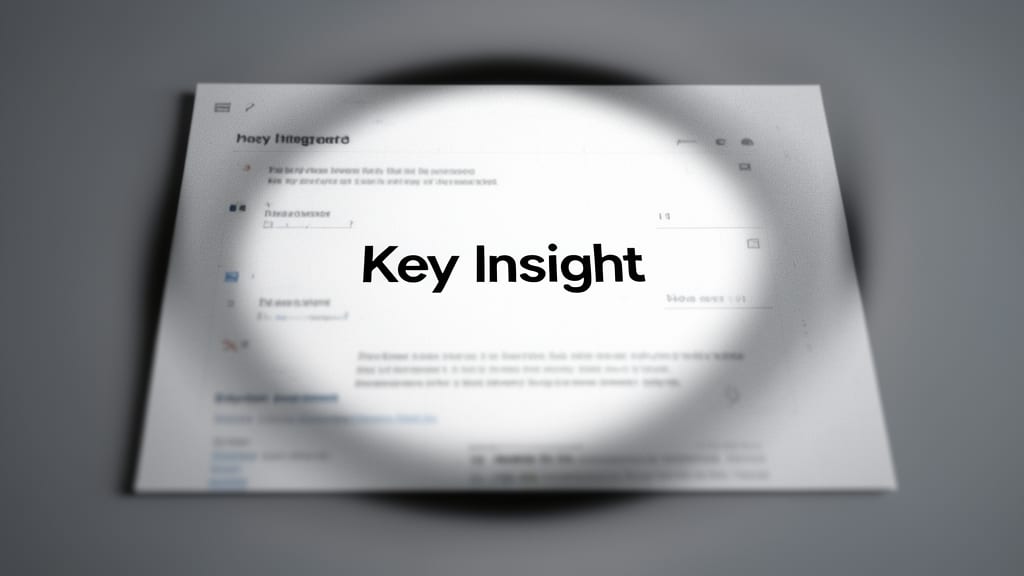
Need to make a specific slide pop without overwhelming your audience? The Box In or Out transition is your secret weapon—it frames content like a spotlight, drawing eyes to exactly what matters.
This effect creates a border that either expands inward or contracts outward, isolating key elements while keeping the rest of the slide clean. You can customize the box style, speed, and direction (inward/outward) to match your presentation’s tone, and it works seamlessly with PowerPoint 2013 and later, including the latest 365 versions.
Perfect for training materials, financial reports, or keynote moments where you need to emphasize data, quotes, or calls-to-action. Use it sparingly—once per presentation—to avoid distracting from your message. ✨