
Tip & Trick
Struggling to find files in your Microsoft ecosystem? Mastering proper file naming conventions transforms chaos into a streamlined workflow. These seven best practices will help you organize files like a professional across Windows, OneDrive, and Office Suite.
Use Lowercase Letters with Hyphens
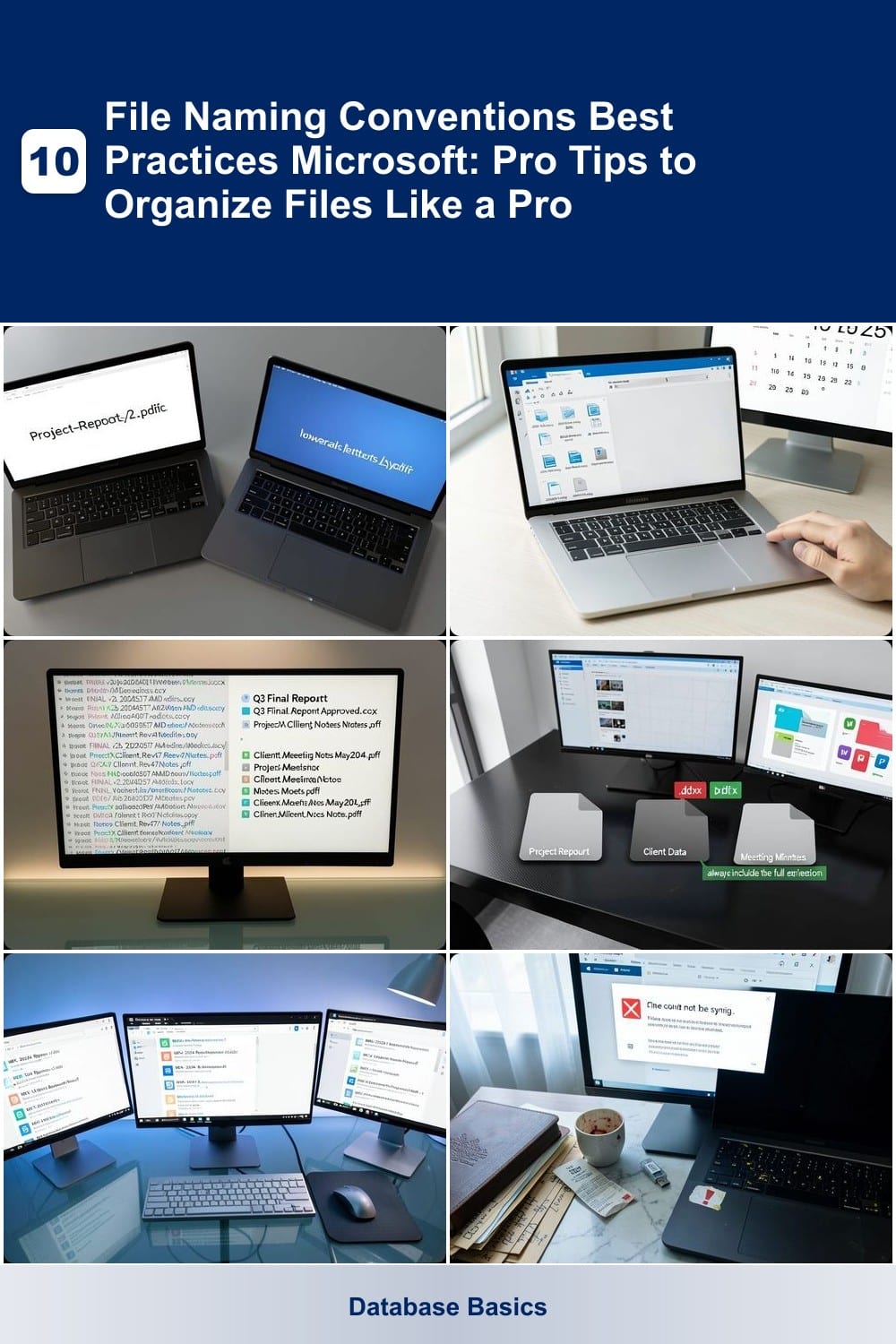
Ever struggled to open a file because its name looked different on your coworker’s Mac than it did on your Windows PC? Lowercase letters with hyphens solve this instantly by ensuring consistency across all devices and operating systems.
Microsoft’s own guidelines recommend this approach for cross-platform compatibility—no more "FILENAME.txt" vs. "filename.TXT" confusion. Hyphens replace spaces, making filenames easier to read and search, while lowercase letters prevent case-sensitivity issues on Linux or macOS systems. For example, "project-report-2024.docx" works flawlessly in Windows, OneDrive, and SharePoint without hidden formatting quirks.
This is especially useful for shared folders where teams collaborate across devices. Teams using Microsoft 365 will appreciate how this convention keeps file lists clean and predictable. ✨
Include Date Formats in Filenames

Ever wasted minutes scrolling through files only to realize you can’t tell which version is the latest? Embedding dates in your filenames solves this instantly—and Microsoft’s YYYY-MM-DD format makes it effortless.
This format ensures files sort chronologically in Windows Explorer (2023-10-15 comes before 2023-10-16), and works seamlessly with OneDrive and SharePoint. Add an underscore after the date (e.g., 2024-05-20_QuarterlyReport.xlsx) to separate it from the project name while keeping everything readable.
Perfect for freelancers tracking client deliverables or teams managing project timelines—just one glance tells you what’s current. ⚡
Limit Filenames to 3-5 Words
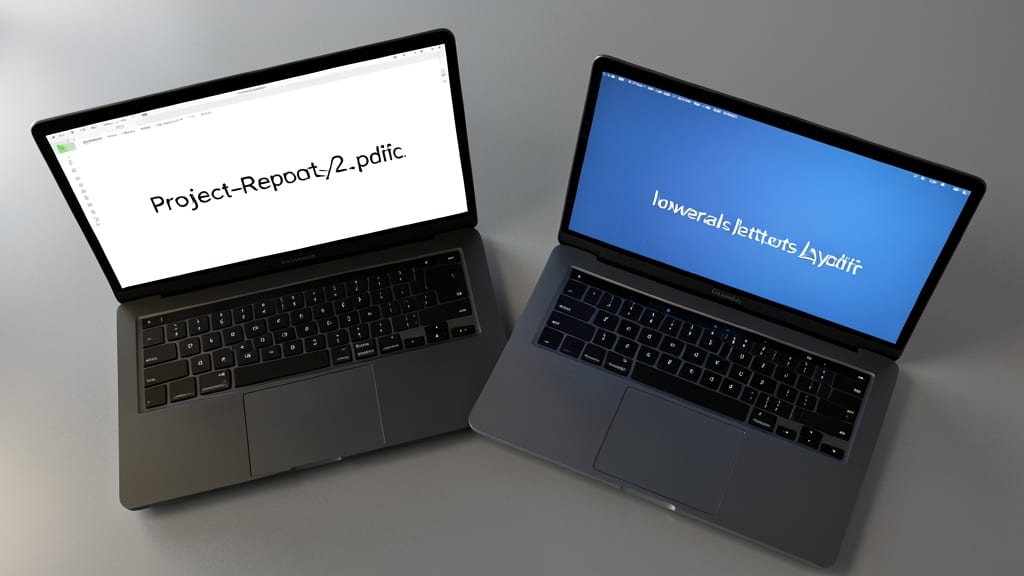
Tired of scrolling through endless filenames that sound like cryptic jargon? The sweet spot for quick recognition lies in 3-5 word filenames—short enough to scan at a glance but descriptive enough to avoid confusion.
Microsoft’s 255-character limit is rarely the bottleneck; instead, long filenames slow down sorting, search, and visual scanning. A name like Q3-Sales-Report-2024-Final.docx works better than Quarterly-Sales-Data-Final-Versions-2024.docx. The key is balance: prioritize clarity without sacrificing speed in Windows Explorer or OneDrive.
This rule shines for teams or freelancers juggling multiple projects. Short names ensure everyone can spot files instantly—no more guessing games in shared drives. ✨
Add File Type Extensions Clearly

OneDrive and SharePoint often hide file extensions by default, leaving you guessing whether a file is a .docx or a .pdf. This can cause confusion when sharing files or searching for specific document types in your cloud storage.
Always include the full extension—like .docx, .xlsx, or .pptx—to ensure clarity. For example, naming a file ProjectReport.docx instead of just ProjectReport prevents misidentification. This practice also helps when sorting files alphabetically or filtering by type in Microsoft apps.
Teams collaborating in OneDrive or SharePoint will especially benefit from this habit, as it reduces errors when opening or editing files. It’s a small tweak with big payoffs for organization! ✨
Prefix Files with Project Codes

When your team juggles MKT-2024-Q1, DEV-2024-Sprint2, and HR-2024-Onboarding simultaneously, visual sorting becomes a lifesaver. Prefixing files with project codes (like PROJ-2024-001) instantly groups related files in Windows Explorer, OneDrive, or SharePoint—no folders required.
Use 3-5 character codes (e.g., FIN-, WEB-, DOC-) followed by underscores for clarity. This works seamlessly with Microsoft’s search functionality, letting you filter by project name in seconds. For example, typing "FIN-" in File Explorer auto-filters all finance-related documents, even across nested folders.
This system shines for cross-functional teams or agencies managing client projects. It’s especially useful when files sync across OneDrive and SharePoint, where visual grouping saves hours of manual sorting. ✨
Avoid Special Characters and Spaces
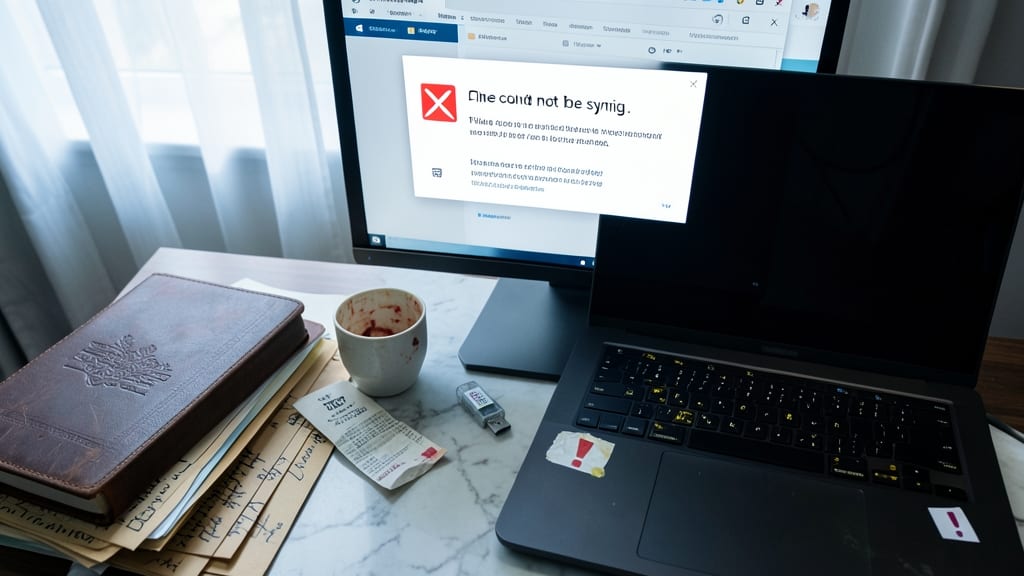
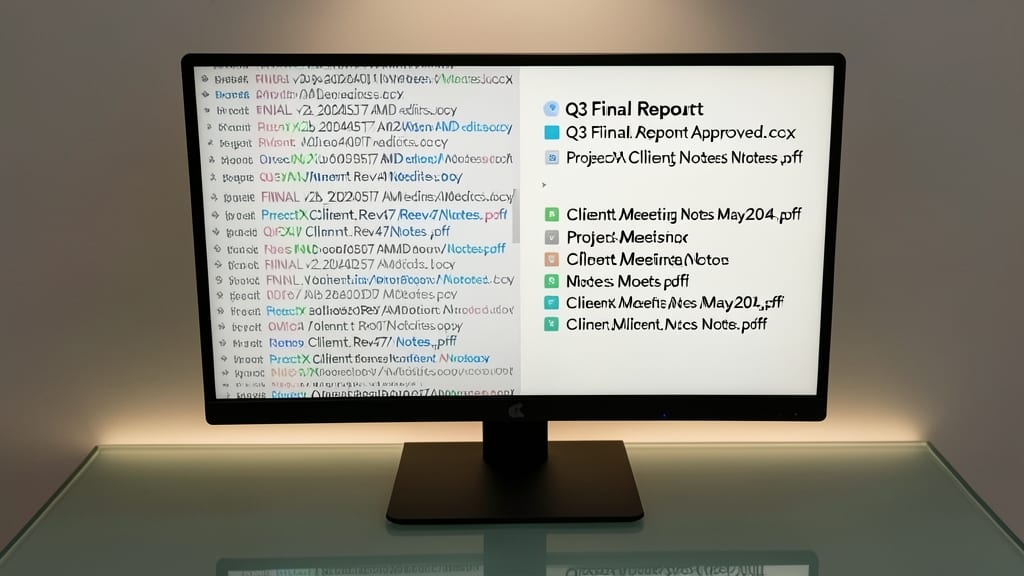
Frustrated when OneDrive refuses to sync or older Windows systems reject your files? The fix is simpler than you think—skip special characters entirely. Characters like !@#$%^&* or spaces may seem harmless, but they trigger sync errors, corrupt file paths, and break compatibility with legacy systems.
Stick to alphanumeric characters (A-Z, 0-9) and hyphens (-) only for seamless cross-platform use. For example, rename Project Report_Final (v2).docx to Project-Report-Final-v2.docx. This avoids issues with OneDrive’s file handling and ensures smooth access on older Windows versions (like Windows 7).
This rule is especially critical for enterprise teams sharing files across departments or legacy systems. A few extra keystrokes now save hours of debugging later. ✨
Use Consistent Naming for Versions

Ever wasted minutes hunting for the latest version of a document? A clear versioning system saves time and prevents overwrites—especially in collaborative Microsoft environments like Teams or SharePoint.
Use suffixes like v2, final, or draft to track revisions visually. For example, rename "MarketingPlanv1.docx" to "MarketingPlanv2final.docx" when approved. This method works seamlessly with Microsoft AutoSave and OneDrive version history, ensuring you always access the right file.
Teams managing client deliverables or internal reports will benefit most from this approach, as it mirrors industry-standard version control while keeping filenames clean and searchable. ✨