
Software
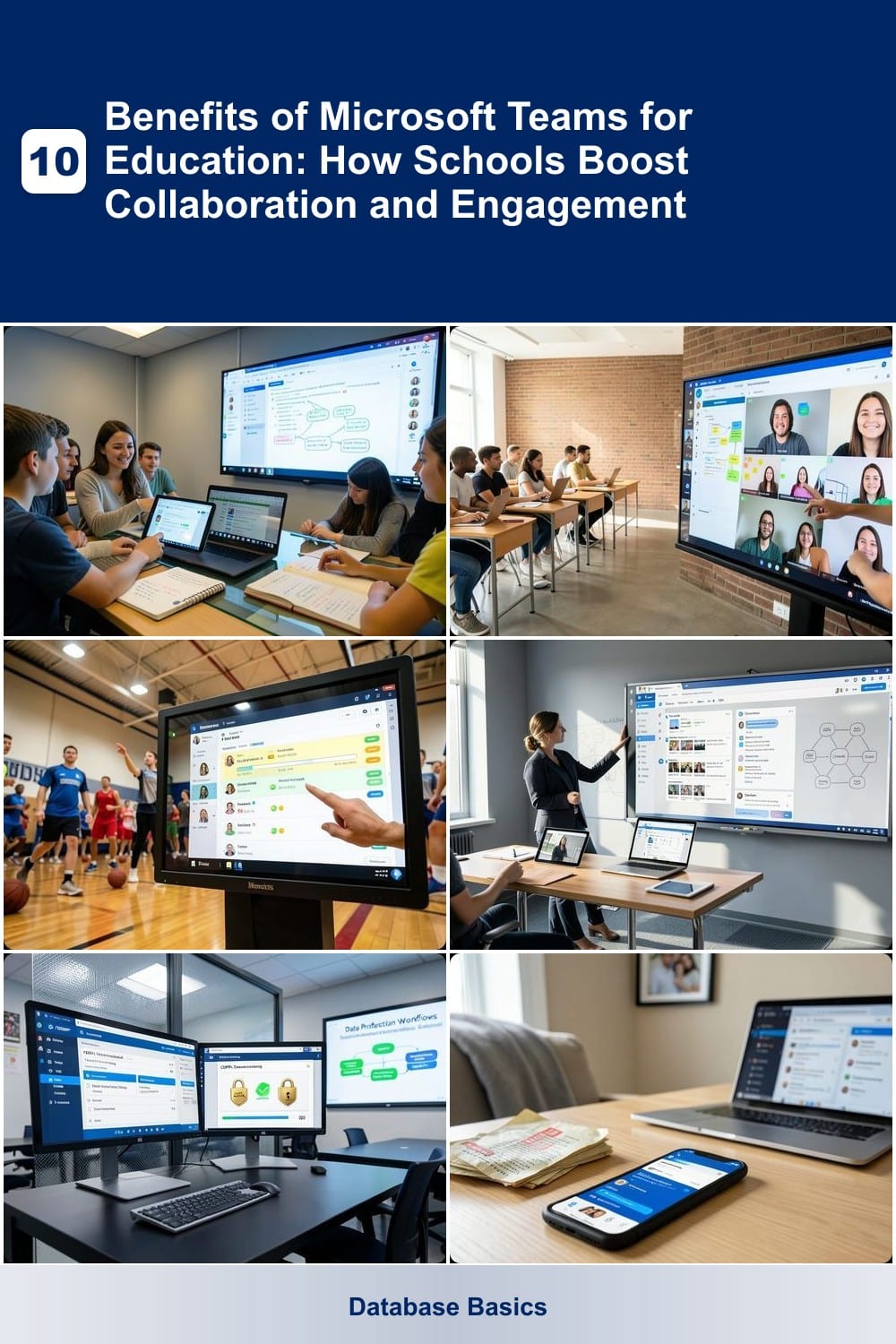
Microsoft Teams isn’t just for businesses—educators are leveraging its powerful tools to transform classrooms into collaborative hubs. These 10 benefits show how schools can enhance engagement, streamline communication, and prepare students for the digital future—all while keeping administration organized and secure.
Real-time classroom collaboration tools
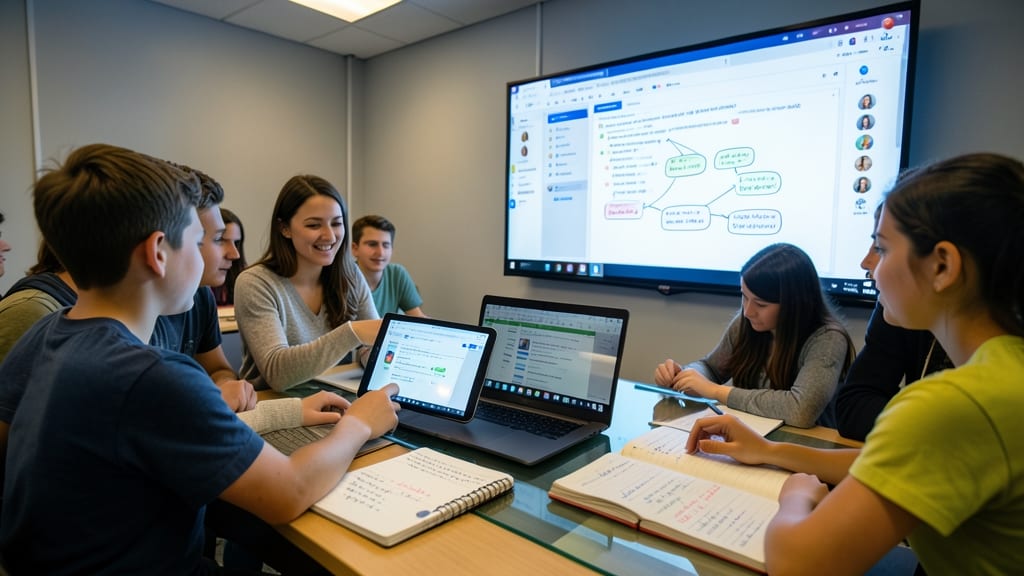
Forget static assignments—Microsoft Teams turns group projects into dynamic, real-time brainstorming sessions where every student contributes simultaneously. The platform seamlessly integrates OneNote, PowerPoint, and Word, letting multiple users edit a single document, presentation, or notebook in real time, with changes appearing instantly on all devices.
Imagine a STEM class where students collaboratively build a 3D model in PowerPoint or a creative writing group refining a story in Word—all without version conflicts or email attachments. The commenting and @mentions features keep discussions focused, while version history ensures no work is lost. Teachers can even assign roles (e.g., "Editor" or "Reviewer") to structure collaboration.
This is the ultimate tool for interdisciplinary projects, debate prep, or peer-review sessions—where brainstorming and iteration happen in the same space. Perfect for educators who want to move beyond passive learning and into active, tech-powered collaboration. ✨
Seamless hybrid and remote learning support
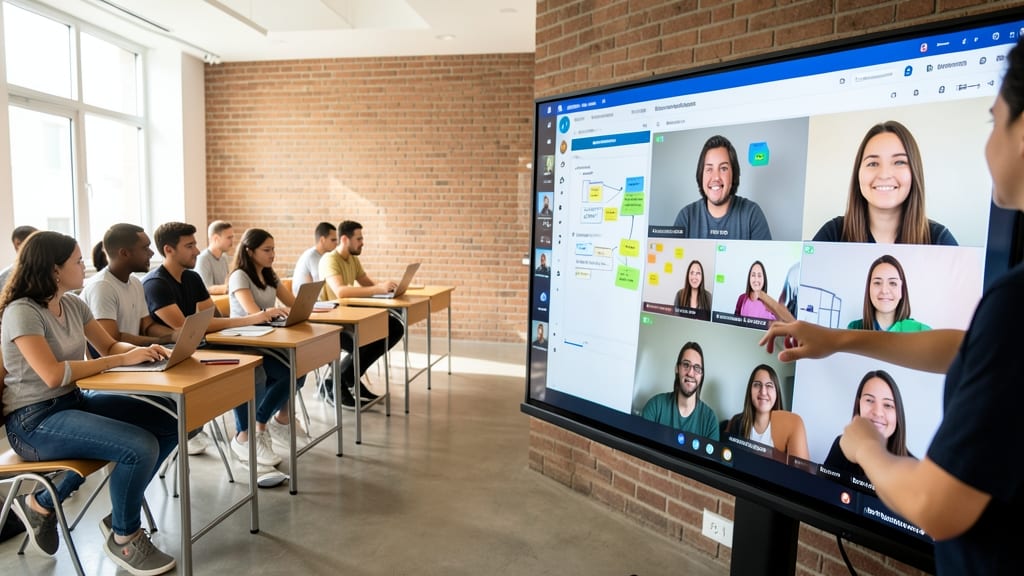
Hybrid learning doesn’t mean choosing between in-person and virtual students—it means giving everyone an equal voice. Microsoft Teams’ breakout rooms and screen-sharing tools let teachers split classes instantly, whether students are in the room or joining remotely, ensuring no one gets left behind during discussions or group work.
With one-click screen sharing, teachers display presentations, whiteboards, or documents to both physical and digital classrooms simultaneously. The live captions feature further bridges gaps, while virtual backgrounds help remote students feel more present. Schools using Teams for hybrid models report up to 30% higher participation rates from online learners compared to traditional video platforms.
Perfect for districts navigating pandemic recovery, snow days, or flexible scheduling, Teams turns hybrid classrooms into inclusive spaces—where technology removes barriers, not creates them. 💻
Built-in classroom management features
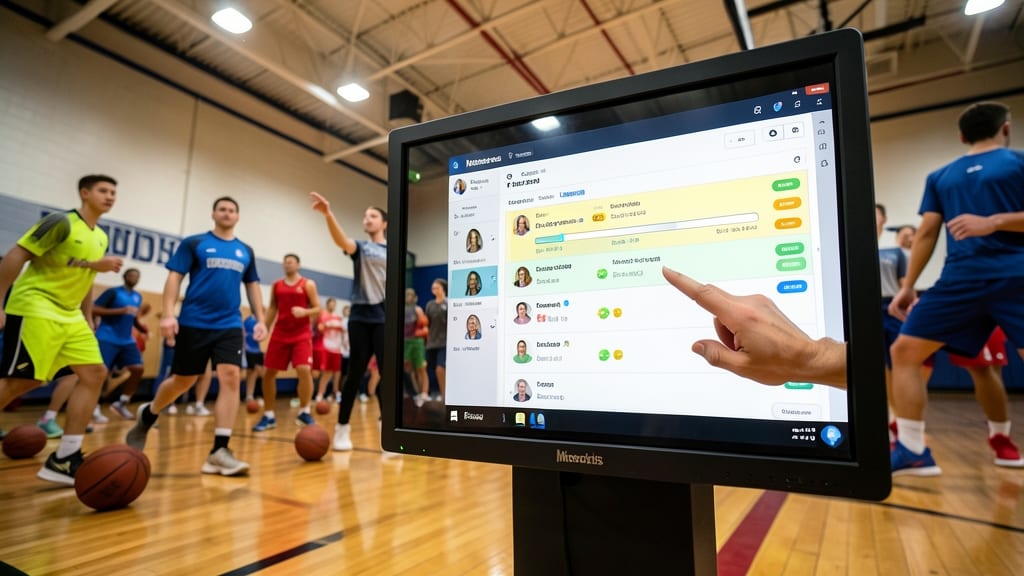
Teachers in chaotic classrooms—like PE or band—finally have a lifeline with Microsoft Teams’ built-in management tools. No more scrambling for third-party apps to maintain order; everything you need is already integrated, from one-click muting to granular participant controls.
With role assignments (e.g., “Presenter” or “Attendee”), you can instantly designate who shares their screen or leads discussions—critical for keeping rowdy subjects on track. The mute/unmute all feature silences background noise in a heartbeat, while student access controls prevent unauthorized interruptions during lessons. Best of all, these tools work seamlessly across devices, so you’re never left scrambling for a tech workaround. 💪
Integration with Microsoft 365 Education

If your school already uses Microsoft 365 Education, you’re already halfway to unlocking Teams’ full potential—no extra licenses or training required. The seamless integration between Teams, Outlook, OneDrive, and Office apps turns disjointed workflows into a unified, efficient system.
Assignments created in Word or PowerPoint auto-save to OneDrive, while Outlook calendar events sync with class schedules. Teachers can share files directly from Teams channels, ensuring every student has access—no more lost emails or version confusion. The zero-configuration setup means IT teams avoid complex migrations, and educators skip the learning curve.
This is the perfect solution for schools already invested in Microsoft’s ecosystem, offering instant productivity boosts without added costs or complexity. 💻
Secure and compliant student data handling
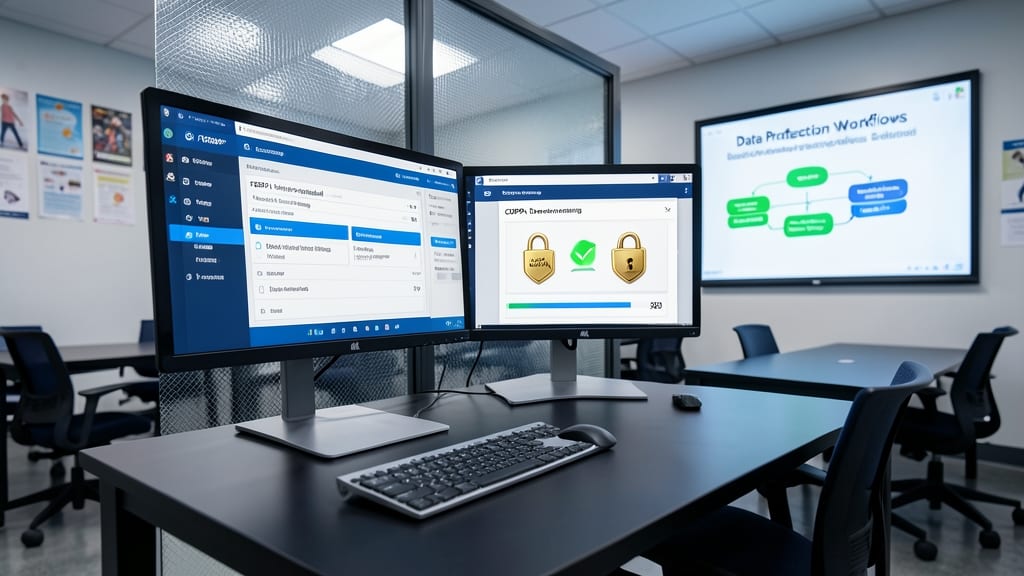
Worried about student privacy in a digital classroom? Microsoft Teams simplifies compliance with FERPA and COPPA—the gold standards for K-12 data protection. Schools can now enforce strict data retention policies and block unauthorized external sharing with just a few clicks, ensuring sensitive student information stays secure.
The platform’s built-in compliance tools let administrators set expiration dates for chats, restrict file downloads, and audit activity logs—all without needing third-party security software. Even student accounts under 13 years old benefit from safeguards like parental consent controls and limited data collection. This means fewer legal headaches and more focus on teaching.
Ideal for districts prioritizing student safety and regulatory adherence, Teams removes the guesswork from digital privacy. 💻
Parental and guardian communication hub

Tired of parents drowning in forwarded emails and missed announcements? Microsoft Teams’ dedicated parent-teacher channels centralize all communication in one secure, organized hub. No more playing phone tag or digging through cluttered inboxes—guardians get real-time updates, assignment previews, and even the ability to join class discussions when invited.
Teachers can post announcements with file attachments (like syllabi or project guidelines) directly to parent channels, while two-way messaging lets guardians ask questions without scheduling separate meetings. The platform also integrates with school calendars, so parents never miss deadlines or events. Plus, translation tools ensure multilingual families stay informed without language barriers.
This feature is a game-changer for elementary schools where parents are highly engaged but often overwhelmed, or middle/high schools with complex scheduling. It turns fragmented communication into a collaborative ecosystem—where everyone’s on the same page. ✨
Interactive polls and quizzes for instant feedback
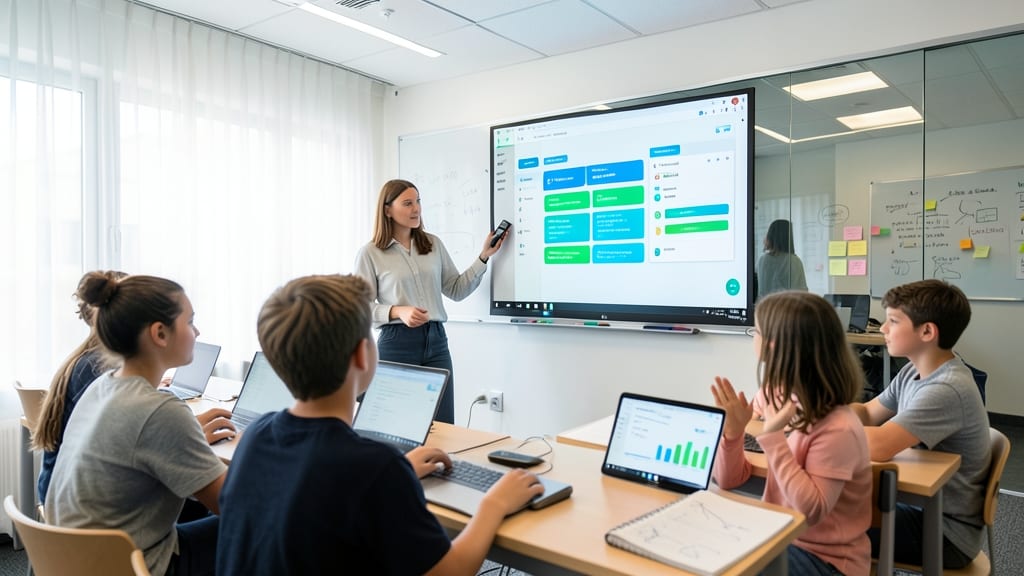
Turn passive lectures into dynamic discussions with Teams’ built-in polls and quizzes, designed to keep students engaged while giving teachers real-time insights. These tools transform formative assessments from a post-lesson task into an interactive experience—no extra apps or logins required.
Create multiple-choice, true/false, or open-ended questions in seconds, then display results instantly to the class. The ‘Reactions’ feature lets students signal confusion or agreement without raising hands, while anonymous responses encourage shy learners to participate. For math classes, use the equation editor to poll students on algebra problems mid-lesson, or test vocabulary in language arts with customizable question banks.
Perfect for middle and high school teachers who want to move beyond one-way instruction. Whether you’re teaching geometry proofs or Shakespearean themes, these tools help you adjust pacing on the spot—keeping students challenged but never overwhelmed. ✨
Customizable classroom channels for organization
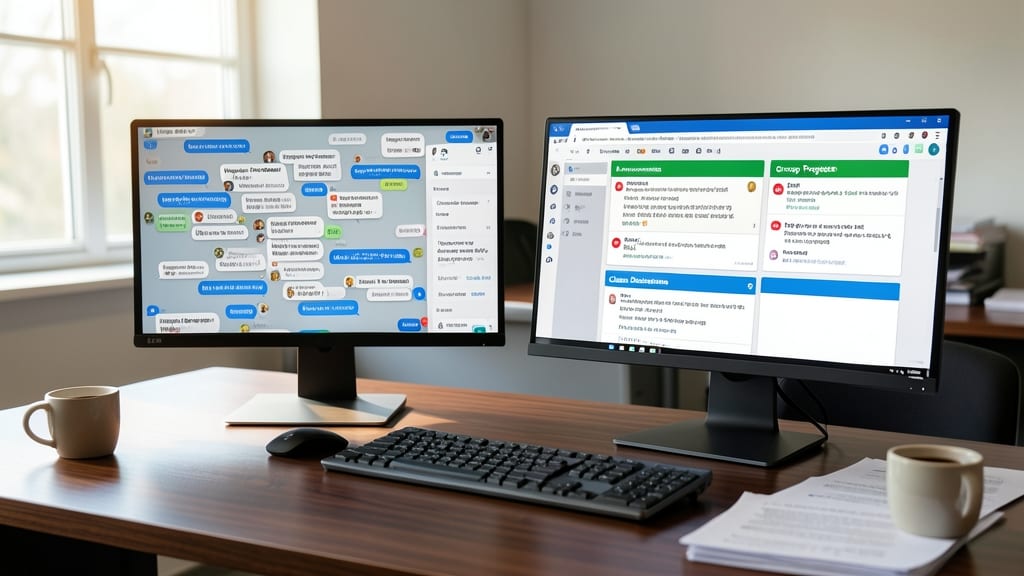
Drowning in a sea of classroom messages? Microsoft Teams’ customizable channels turn chaos into clarity by organizing discussions into dedicated spaces—no more lost assignments or mixed-up group chats.
Create channels for ‘Announcements’ (for school-wide updates), ‘Group Projects’ (with pinned deadlines and files), and ‘Homework Help’ (for Q&A threads). Teachers can archive old channels to declutter or lock finalized projects to prevent edits—perfect for multi-year courses like history or science where continuity matters. The tabbed interface keeps everything visible at a glance, so students jump straight to what they need.
This feature is a game-changer for high-school teachers juggling multiple classes or middle-school educators introducing digital workflows. Say goodbye to scattered emails and hello to structured, searchable discussions. ✨
Accessibility tools for inclusive learning
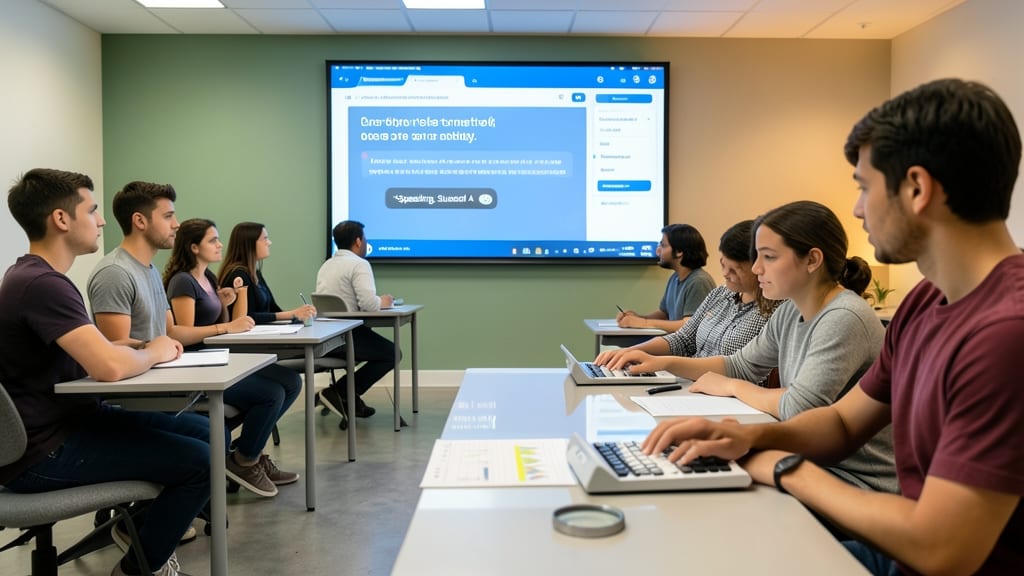
Every student deserves to fully engage in learning—no exceptions. Microsoft Teams removes barriers with built-in accessibility tools that adapt to diverse needs, from live captions for hearing-impaired students to screen reader compatibility for visually impaired learners.
The platform’s customizable text sizes and high-contrast modes ensure readability for those with dyslexia or low vision, while closed captions (auto-generated or manually added) support deaf/hard-of-hearing students in lectures or recorded lessons. What’s more, Teams’ compliance with ADA and WCAG standards means schools automatically meet legal requirements without extra setup.
Ideal for special education programs or inclusive classrooms, these tools turn technology into an equalizer—giving every learner the same opportunities to participate, collaborate, and thrive. ✨
Cost-effective alternative to specialized EdTech
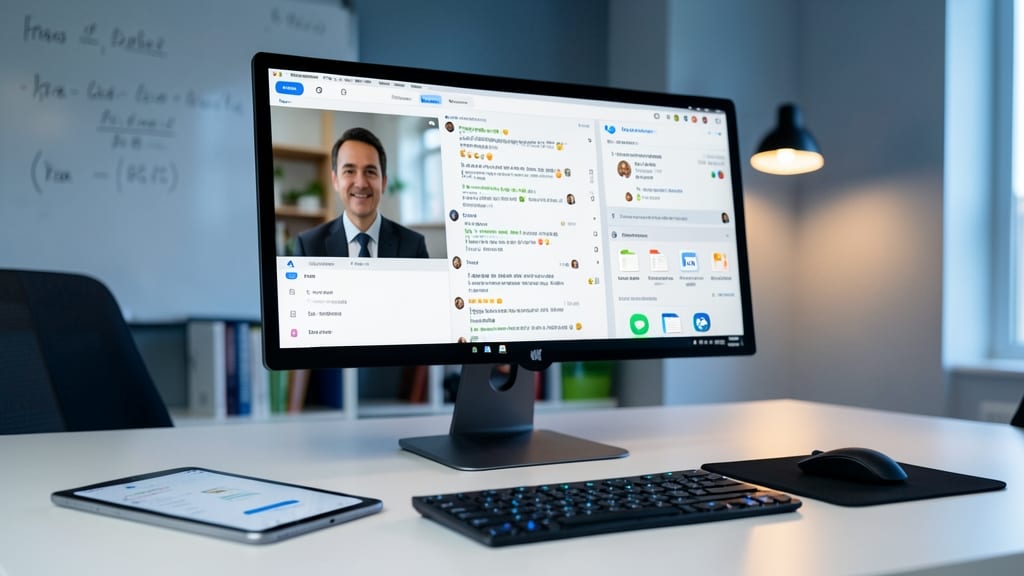
Tired of juggling three or four separate apps just to handle classroom communication, assignments, and video calls? Microsoft Teams simplifies everything with a single, all-in-one platform that replaces the need for Zoom, Google Classroom, and Dropbox—all while keeping costs low.
With existing Microsoft 365 Education licenses, schools avoid the expense of new software subscriptions. The platform combines video conferencing, file-sharing, and class management into one intuitive interface, reducing teacher workload and student confusion. Plus, IT departments love the zero-configuration setup for new devices.
This is the perfect solution for budget-conscious districts or schools already invested in Microsoft’s ecosystem. 💻