
Tip & Trick
Struggling to get started with SharePoint? These eight beginner-friendly tips will help you navigate Microsoft’s powerful collaboration platform with confidence, even if you’ve never used it before. From essential setup steps to productivity hacks, these quick wins will set you up for success on your first projects.
Master SharePoint navigation with modern UI

If SharePoint’s navigation feels like searching for a needle in a haystack, you’re not alone—many users struggle with its modern UI at first. The good news? Microsoft’s global search bar and intuitive navigation menus are designed to cut through the clutter, so you can find sites, documents, and tools in seconds without frustration.
Start by typing keywords into the search bar (top-right corner) to filter sites, files, or even people. Use the left-hand navigation rail to jump between recent sites, shared libraries, or your personal OneDrive. The app launcher (waffle icon) gives quick access to all your connected apps, while the breadcrumbs trail (above pages) lets you backtrack effortlessly. For faster access, pin frequently used sites to the favorites bar—it’s like bookmarking, but built into SharePoint.
This tip is a game-changer for freelancers migrating from Dropbox, remote teams switching from email attachments, or new hires overwhelmed by corporate tools. Mastering navigation first means the rest of SharePoint will feel like second nature. 💡
Create document libraries for organized file storage
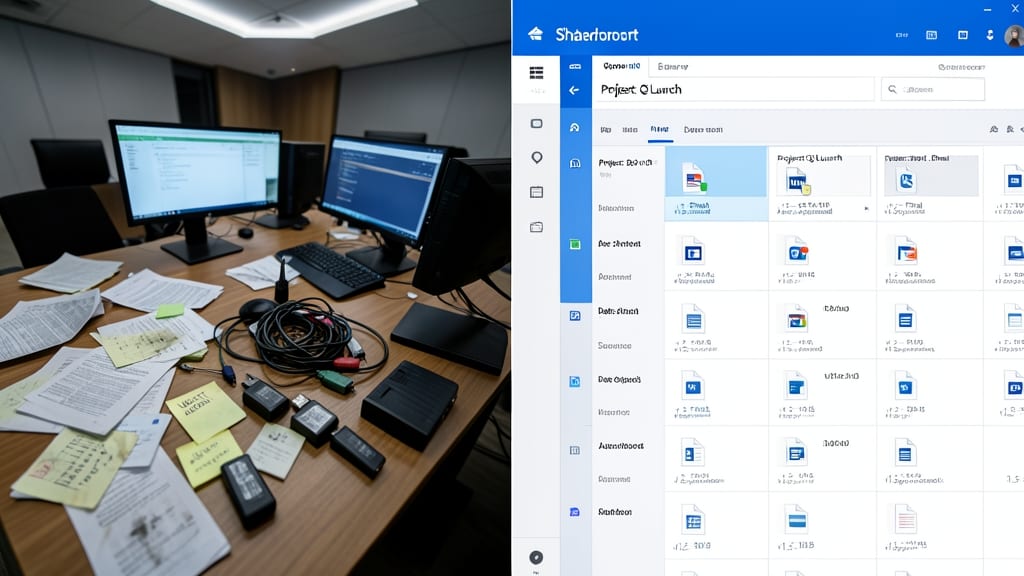
Drowning in a digital paper trail? SharePoint’s document libraries turn chaotic file storage into a searchable, version-controlled powerhouse—no more digging through endless folders. With metadata tagging (like project names, dates, or authors) and automatic versioning, you’ll never lose track of the latest draft again.
Start by creating a library and adding columns for custom metadata (e.g., "Client," "Status," or "Priority"). Enable versioning to track changes, then use the search bar to filter files by tags—no more scrolling through hundreds of documents. SharePoint also integrates with Office apps, so edits sync automatically. For teams, co-authoring lets multiple people work on the same file simultaneously.
This is your go-to for marketing teams managing client files, project managers tracking deliverables, or freelancers organizing contracts. Say goodbye to file chaos—your future self will thank you. 💻
Use lists to track tasks and information

Tired of drowning in spreadsheets or scattered notes? SharePoint’s built-in lists turn messy data into clear, actionable workflows—no coding required. Whether you’re tracking project deadlines, managing contacts, or monitoring inventory, customizable views like Gantt charts, calendars, or simple tables adapt to your needs.
Start with a Tasks list to assign deadlines and statuses (e.g., "Not Started," "In Progress"), or use Contacts lists to store team details with clickable email links. The quick-edit mode lets you update multiple items at once, while alerts notify you of changes—ideal for remote teams. Best of all, these lists sync across devices, so your to-do list stays with you.
Perfect for freelancers juggling clients, small teams coordinating projects, or beginners who want structure without complexity. Ditch the chaos and let SharePoint keep you organized. ✨
Leverage SharePoint News for team updates

Tired of drowning in email threads just to share quick updates? SharePoint’s News web part turns your team’s announcements into a clean, visual hub—no technical skills required. With just a few clicks, you can publish formatted posts, embed images, and even tag team members for visibility.
The News web part integrates seamlessly into your SharePoint site, letting you create highlighted posts with rich text, images, and hyperlinks. You can categorize updates (e.g., "Company News," "Project Milestones") and pin important announcements to the top. Best of all, it syncs across devices, so your team stays informed whether they’re in the office or remote.
This is perfect for new managers or collaboration leads who want to replace chaotic email chains with a single, searchable source of truth. Start with a weekly team highlight reel—your inbox will thank you. ✨
Automate workflows with Microsoft Power Automate
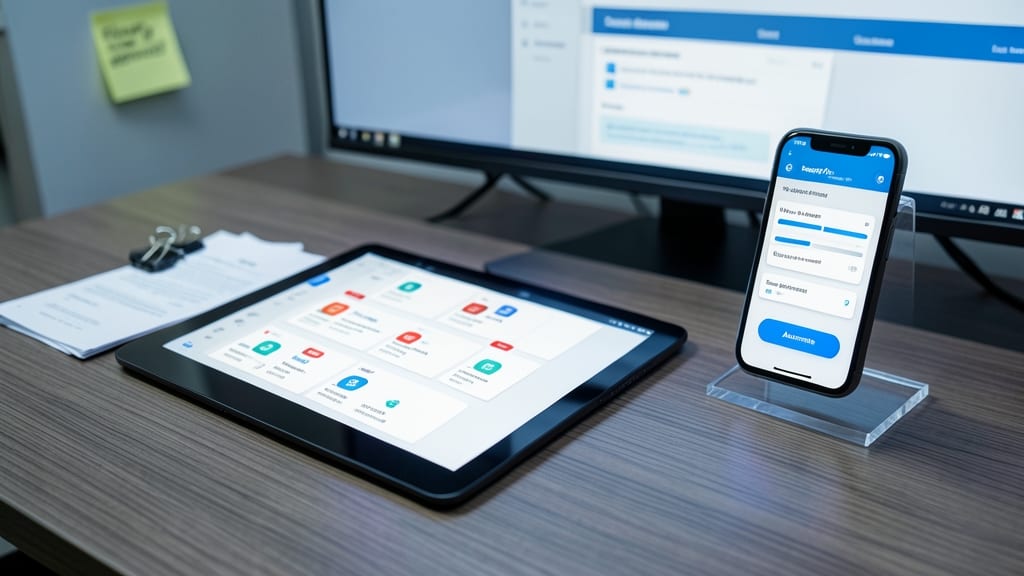
Tired of manually tracking document uploads or chasing down team members for approvals? Microsoft Power Automate bridges the gap between SharePoint and automation—no coding required. With just a few clicks, you can set up flows that trigger notifications, move files, or even approve tasks automatically when documents hit your SharePoint libraries.
Start by creating a "When a file is created" trigger in Power Automate, then connect it to your SharePoint library. Add an action like "Send an email notification" to alert your team instantly. The platform offers 200+ pre-built connectors (including Outlook, Teams, and Excel) and a drag-and-drop interface, so even beginners can build workflows in minutes. For example, automate sending a Slack alert when a contract is uploaded or updating a task list status automatically.
Perfect for small teams or solo users managing projects, this tool cuts repetitive tasks by 70%+ while keeping everyone aligned. No IT skills? No problem—Power Automate’s zero-config templates make it beginner-friendly. ✨
Customize SharePoint sites with themes and web parts
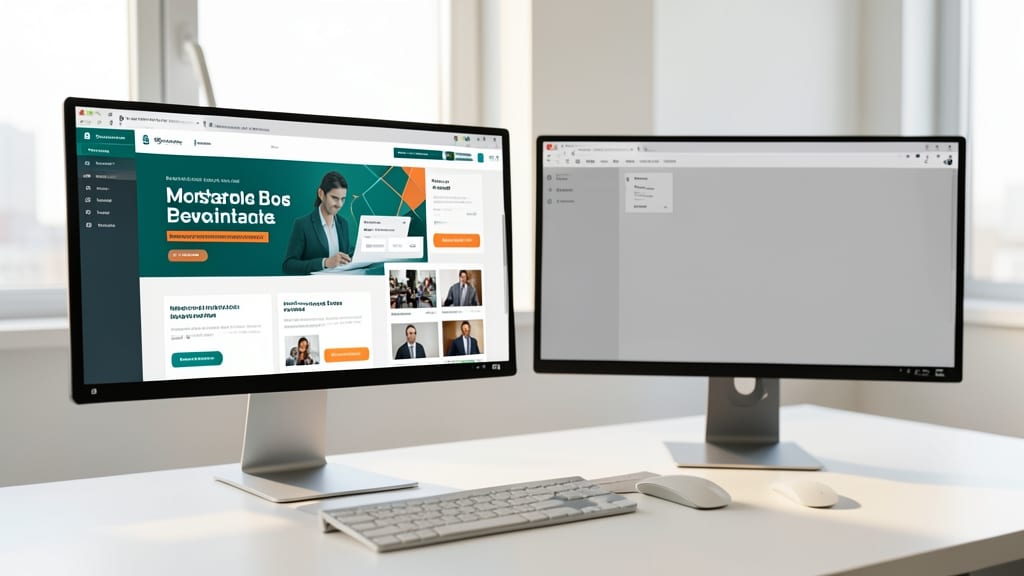
Tired of generic SharePoint sites that look like every other corporate portal? With themes, fonts, and web parts, you can transform your workspace into something that reflects your team’s personality—without needing design skills. SharePoint’s built-in customization tools let you switch between modern, classic, or custom themes, adjust color palettes, and even upload your own logo for a polished look.
Drag-and-drop web parts like news feeds, document libraries, or calendars to create a layout tailored to your workflow. Need a dashboard for project updates? Add the Quick Links web part. Prefer a clean, minimalist design? The Hero web part lets you spotlight key announcements with images. Best of all, these changes apply instantly—no IT approval required.
This tip is perfect for team leads, HR coordinators, or small business owners who want a workspace that’s both functional and visually cohesive. Whether you’re aligning with company branding or just making your site feel more inviting, these tools put the "you" in your workspace. ✨
Collaborate efficiently with SharePoint groups
Tired of sifting through endless files or guessing who has access to what? SharePoint groups let you assign permissions in minutes—no IT help required. Create a group for your marketing team, finance department, or even a single project, then grant edit, read, or contribute access with just a few clicks.
Start by navigating to your site’s Site Contents, then select Groups under the People tab. Here, you can assign SharePoint licenses (like Site Owner or Member) and even nest groups for complex permissions. The best part? Changes apply instantly—no waiting for approvals. This keeps sensitive documents secure while letting teams focus on work, not access requests.
Perfect for small teams or solo admins managing multiple projects, SharePoint groups turn chaos into clarity. Give it a try today! ✨
Troubleshoot common SharePoint errors quickly
Ever hit a wall because SharePoint suddenly won’t let you edit a file—or worse, crashes when you try to sync? These three common errors (and their fixes) will save you hours of frustration. Permission errors, broken links, and sync conflicts are the most frequent roadblocks for beginners, but they’re all solvable with the right steps.
Start by checking file permissions—right-click the document and select Manage Access to verify your role. For broken links, use the Check Links tool in the library settings (found under Library Settings > Advanced Settings). Sync issues? Clear the SharePoint app cache on your device or run OneDrive Sync Troubleshooter from Microsoft’s support site. Each fix takes less than 5 minutes once you know where to look.
This tip is your lifeline if you’re managing projects solo or supporting a small team. No IT background needed—just a checklist and a little patience. 💪